
Conversive's Custom Keyword Filter feature allows businesses to define and block specific keywords in outgoing messages. This is crucial for ensuring compliance with regulations, maintaining professionalism, and preventing the transmission of sensitive or inappropriate information.
How the Restricted keywords are handled in the Conversive?
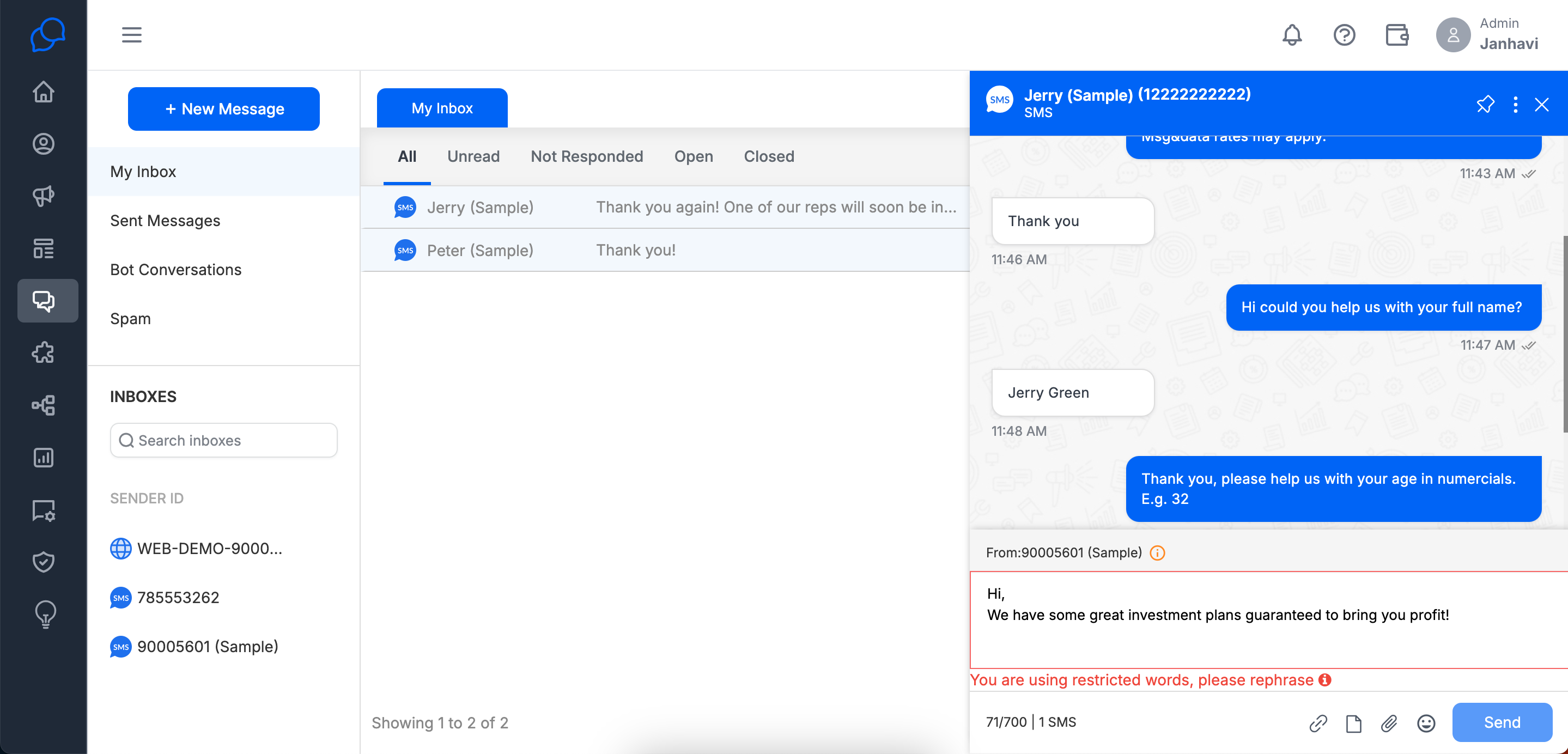
When the Restricted word is used in the Converse desk while sending a message, it will show an error with the Restricted words being used in the message with the words pointing which need to be changed.
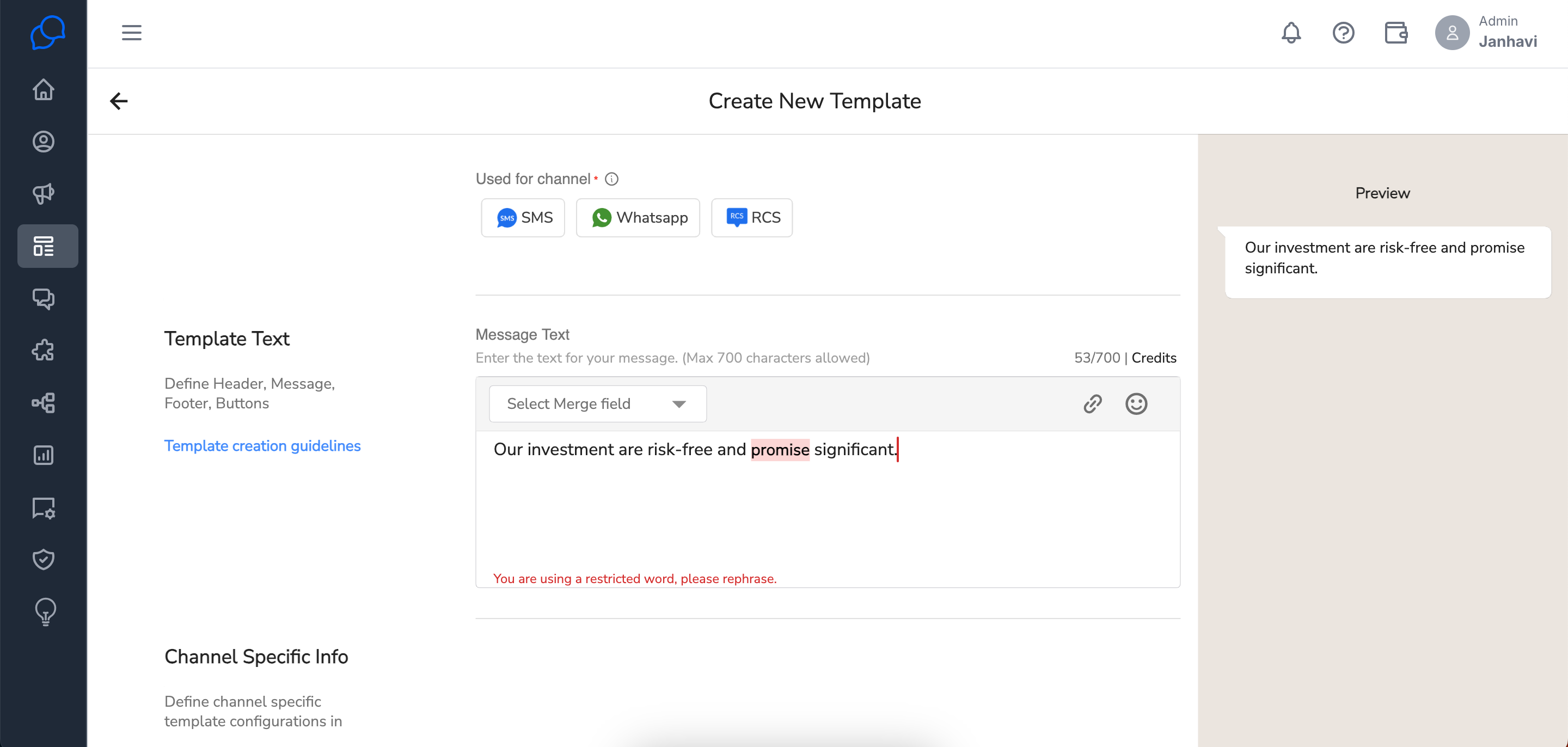
Users will not be able to create Templates with restricted keywords.
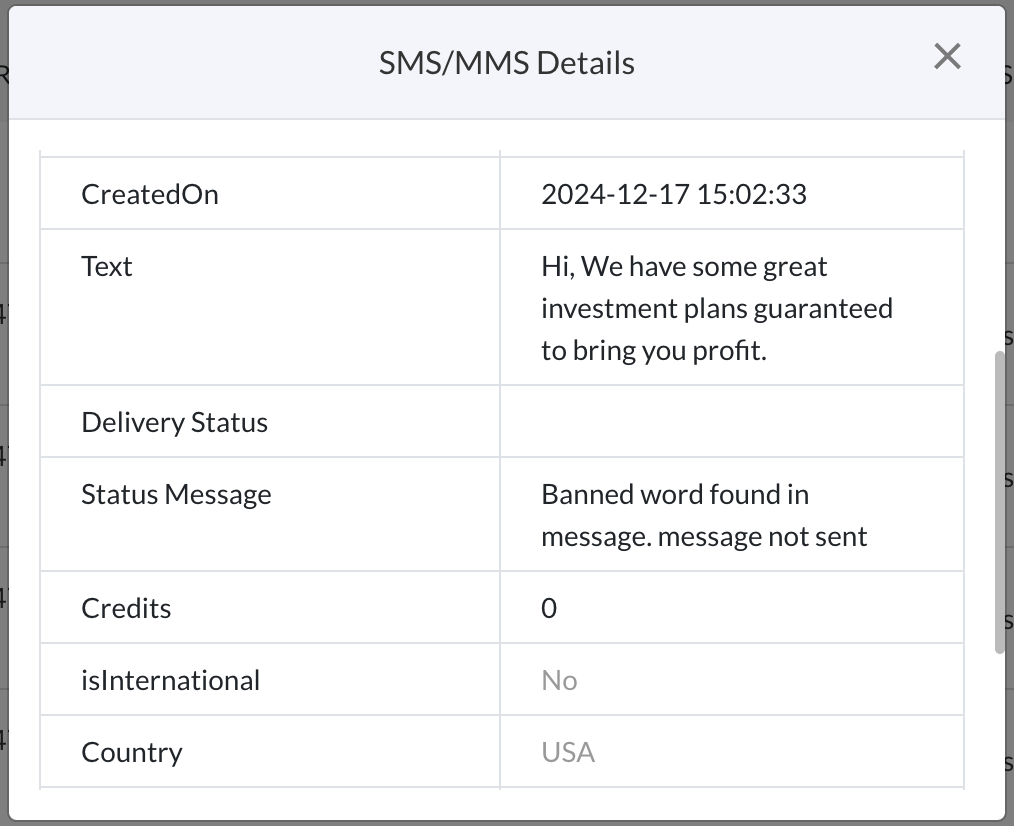
When the message is from other sources, it will block the message on the Message-History and create a message history with the error of an offensive word used.
Steps to Add Custom Keywords for Restriction in Conversive
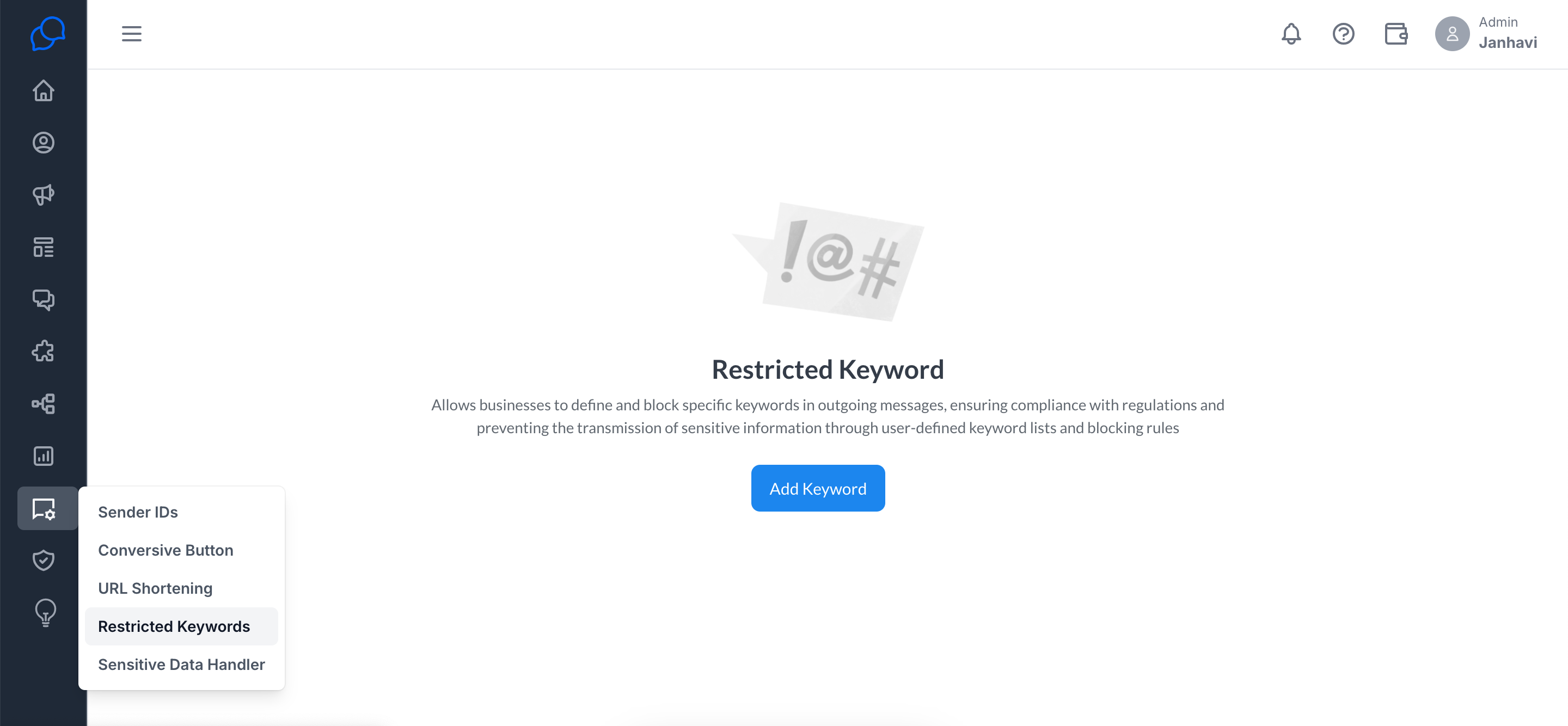
Step 1: Navigate to the Restricted Keywords menu
Log in to your Conversive account.
From the top navigation bar, click on the Restricted Keywords tab.
Step 2: Add Keywords to the Restricted List
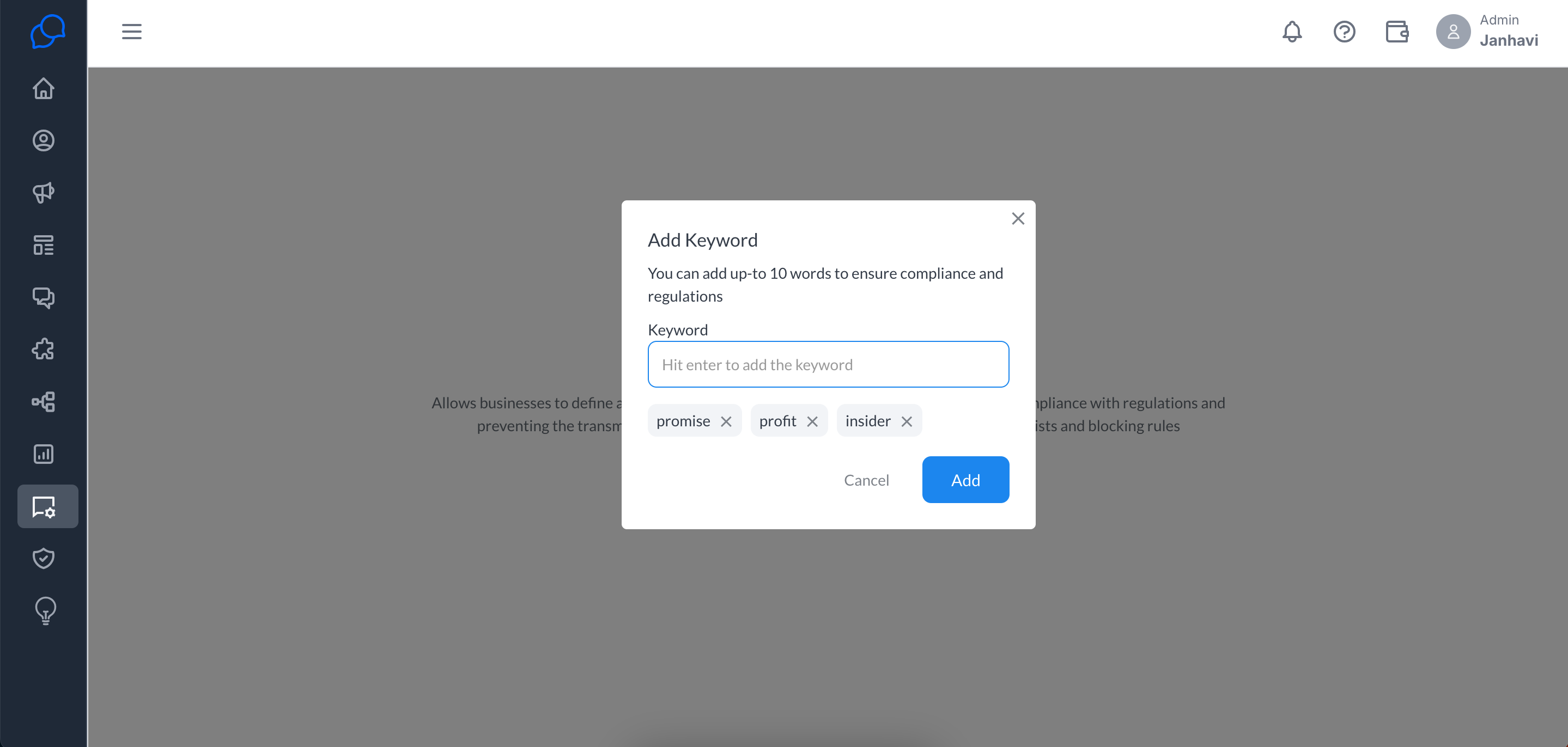
Click on the Add Keyword button in the Restricted Keyword section.
A pop-up window will appear with a field to enter keywords.
In the pop-up window, type the keywords you want to restrict.
Press Enter after typing each keyword to add it to the list.
Once all desired keywords are entered, click the Add button to save them.
Step 3: Verify the Keywords List
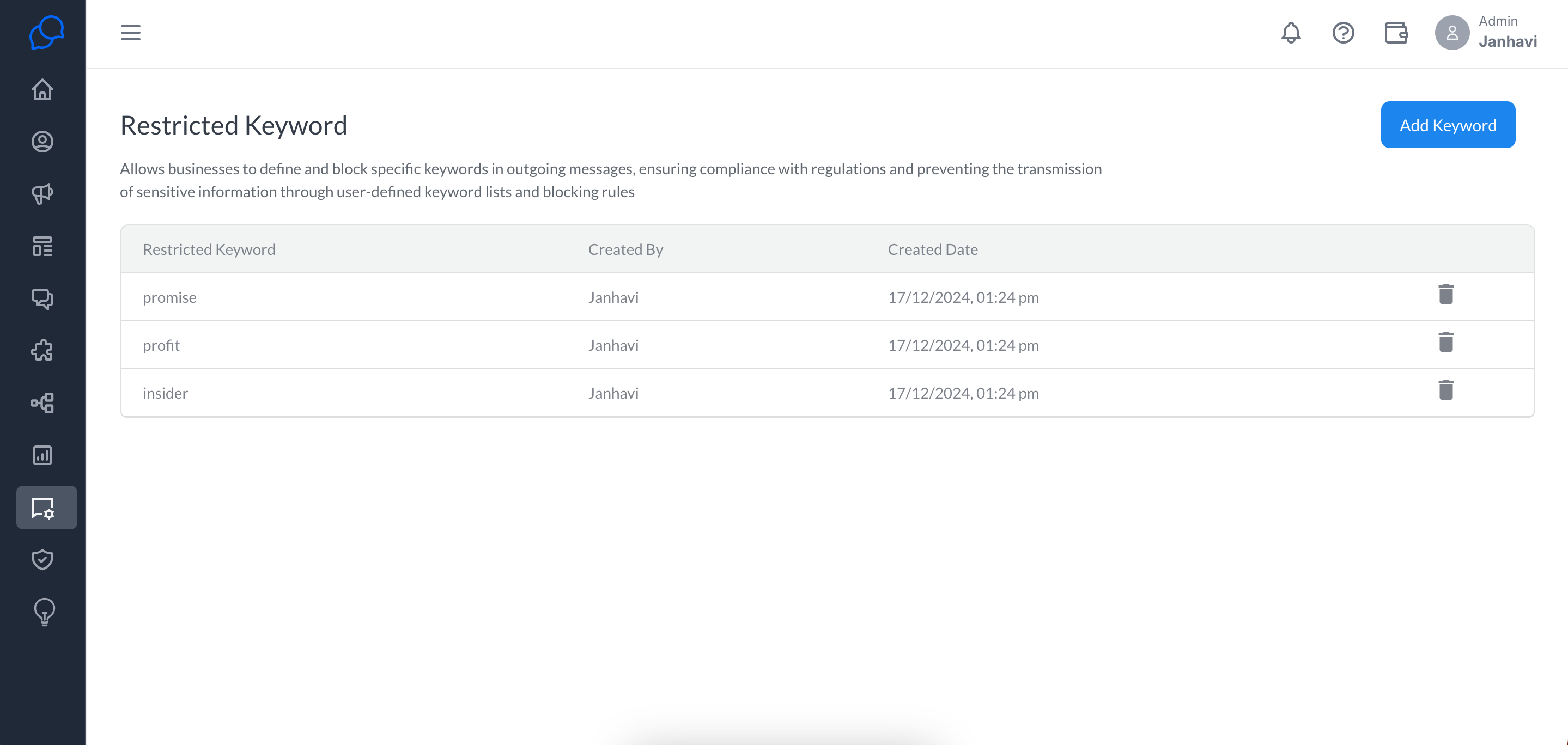
After adding the keywords, they will be listed in the Restricted Keyword section.
Ensure that all the keywords you entered are displayed correctly.
The current limit of the number of words is 10. You can get more words by requesting us at care@beconversive.com.
Your setup has been completed. From now whenever an agent tries to use this in their message, it will block them from sending.
