
What is a Sensitive Data Handler?
The Sensitive Data Handler ensures that outgoing messages are scanned for and handle sensitive information in a secure and compliant manner, particularly in industries subject to data protection regulations.
What are the key features of a Sensitive data handler?
Key Features:
Identification of Sensitive Data: The handler will identify sensitive information such as personal identification numbers, financial data, and medical records within outgoing messages.
Secure Transmission: Sensitive data will be encrypted during transmission to protect it from unauthorized access.
Data Masking: The handler can mask certain portions of sensitive information to ensure that even authorized personnel can only view the necessary details, maintaining privacy.
How to set up a Sensitive data handler in my account?
Go to Message Services in the navigation bar
Click on Sensitive Data Handler in the menu
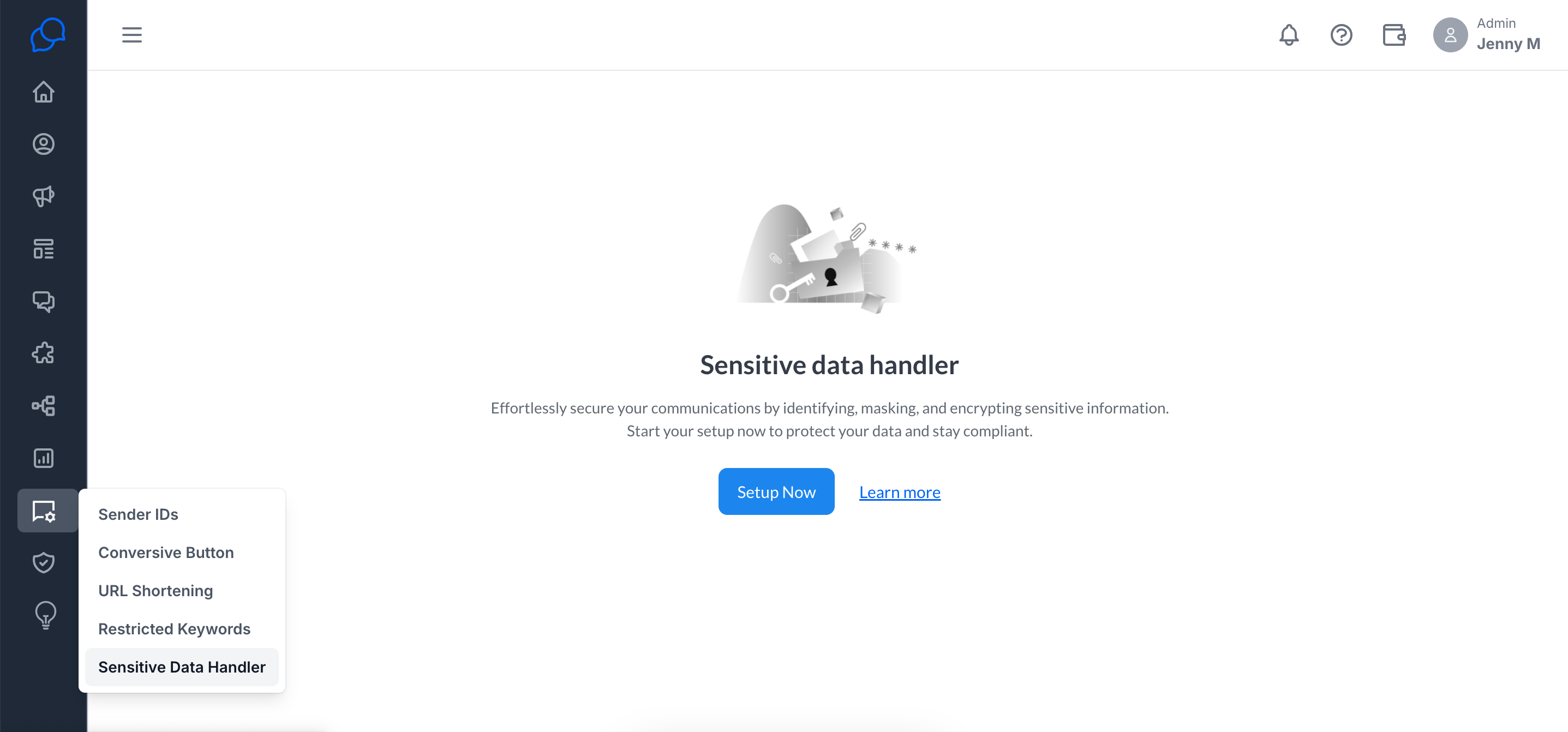
Click on Setup Now
You will see the following form to mask the sensitive data.
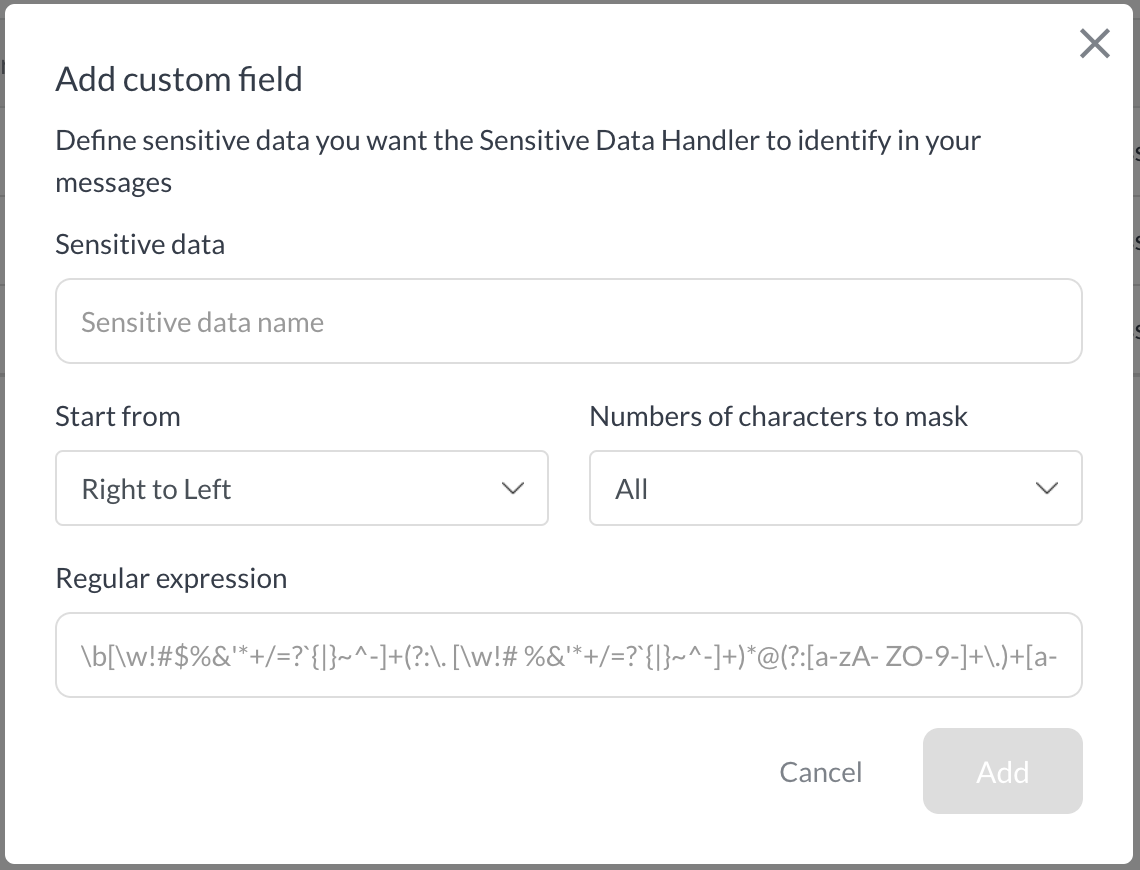
You can fill out the form in the following way:
Sensitive data: You can add the title to understand which information is getting masked from your account.
Start from: In this field you can select from where you want the information to be masked.
Number of characters to mask: You can select how many digits or letters should be masked.
Regular expression: You can add regular expressions in this field, which are used to identify the value that you want to mask.
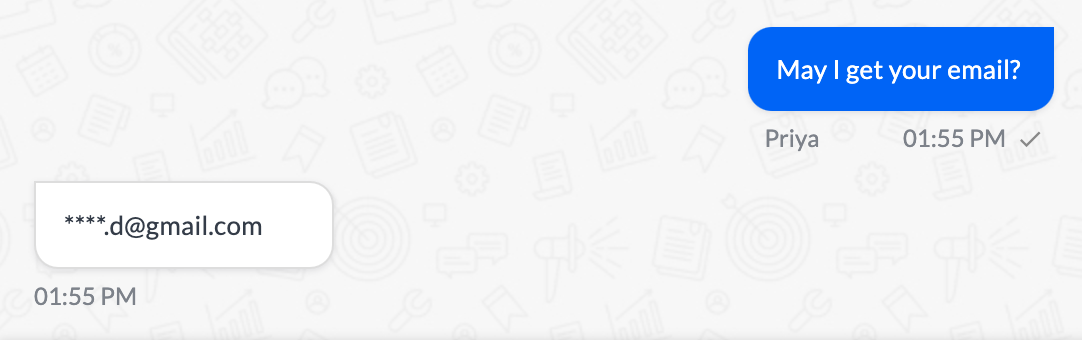
For, e.g., In the below image ****vi@gmail.com, this is how the email will look once it is masked.
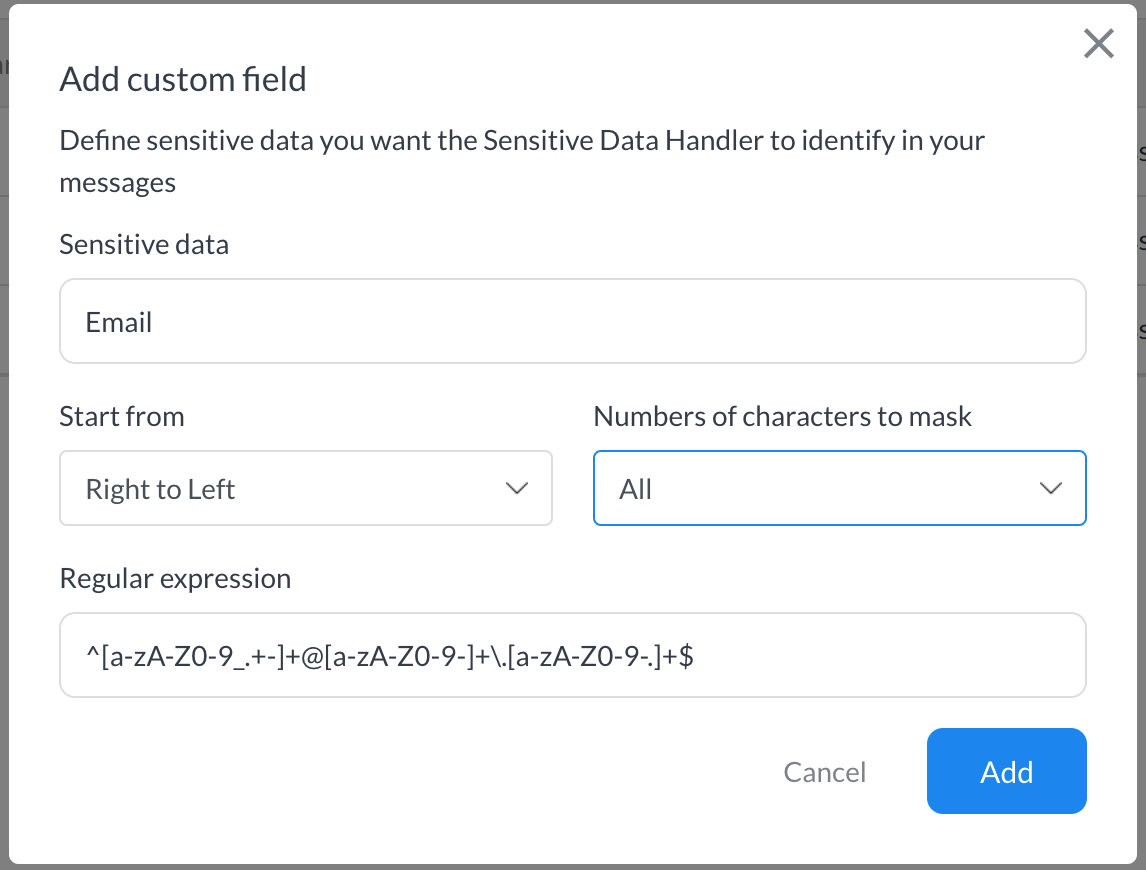
Click Add once all the fields are added.
Once you have created the data, it will be enabled in your account.

In Converse Desk, when agents request sensitive information, the messages will be automatically masked according to your configured settings.
Frequently Asked Questions
Can I disable the sensitive data handler once it's enabled?
Yes, you can disable the sensitive data handler by simply turning off the toggle.Can I edit the sensitive data handler and its values?
Yes, you can edit the sensitive data handler and its values by clicking the edit (pen) icon. Once you’ve made the changes, click on "Update" to save the new values.Can I delete custom data from the sensitive data handler?
Yes, you can delete specific fields by clicking the delete icon next to the field you want to remove.
