
Overview
The URL Shortening and Tracking feature allows the user to shorten a URL thereby reducing the characters in the link and hiding the parameters which deter recipients from clicking on the link. Clicks on all short links created using SMS-Magic are tracked and the information such as the total count of the click is displayed.
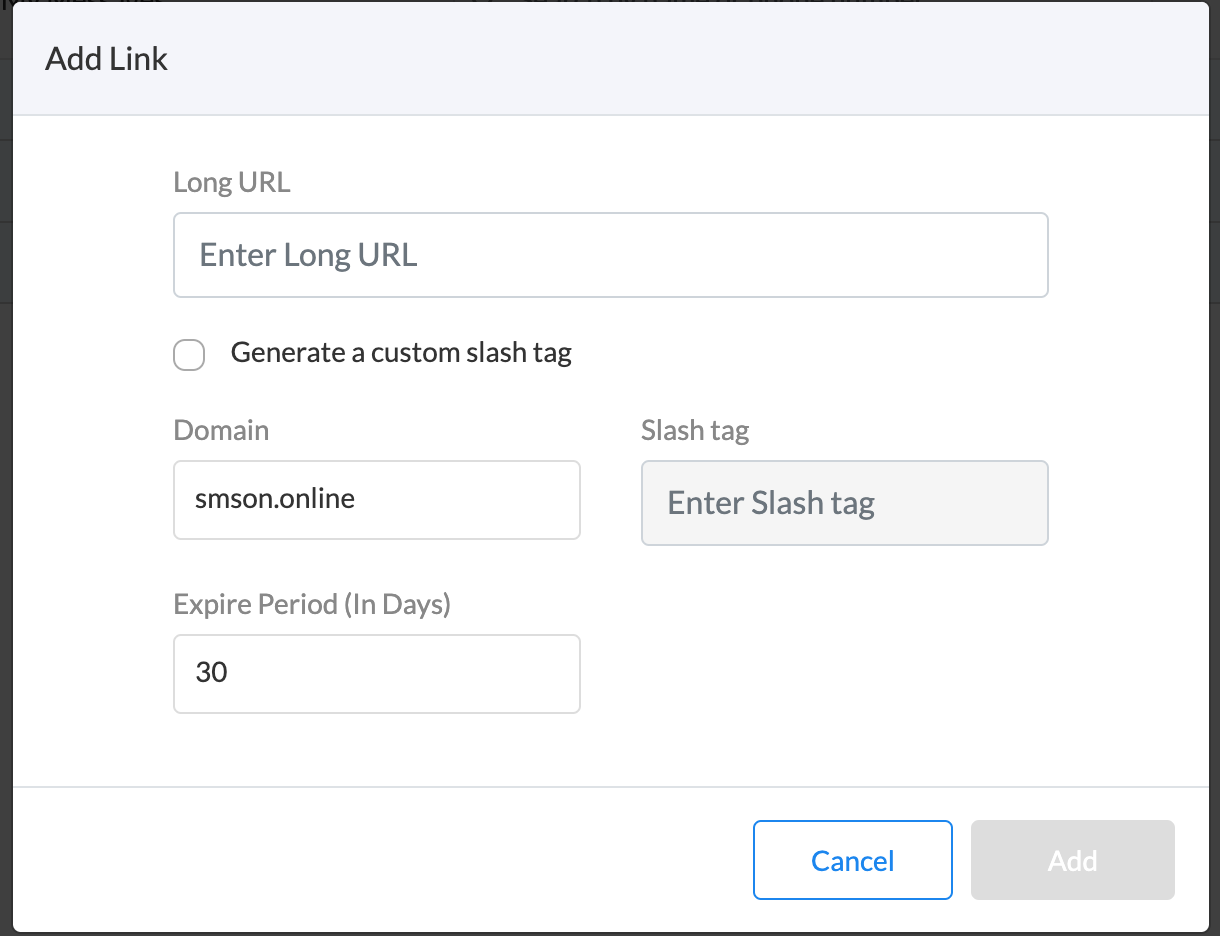
As you can see in the screenshot below, once the URL is entered and all other details are added and once you click on the ‘Add’ button, the new shortened URL is generated:
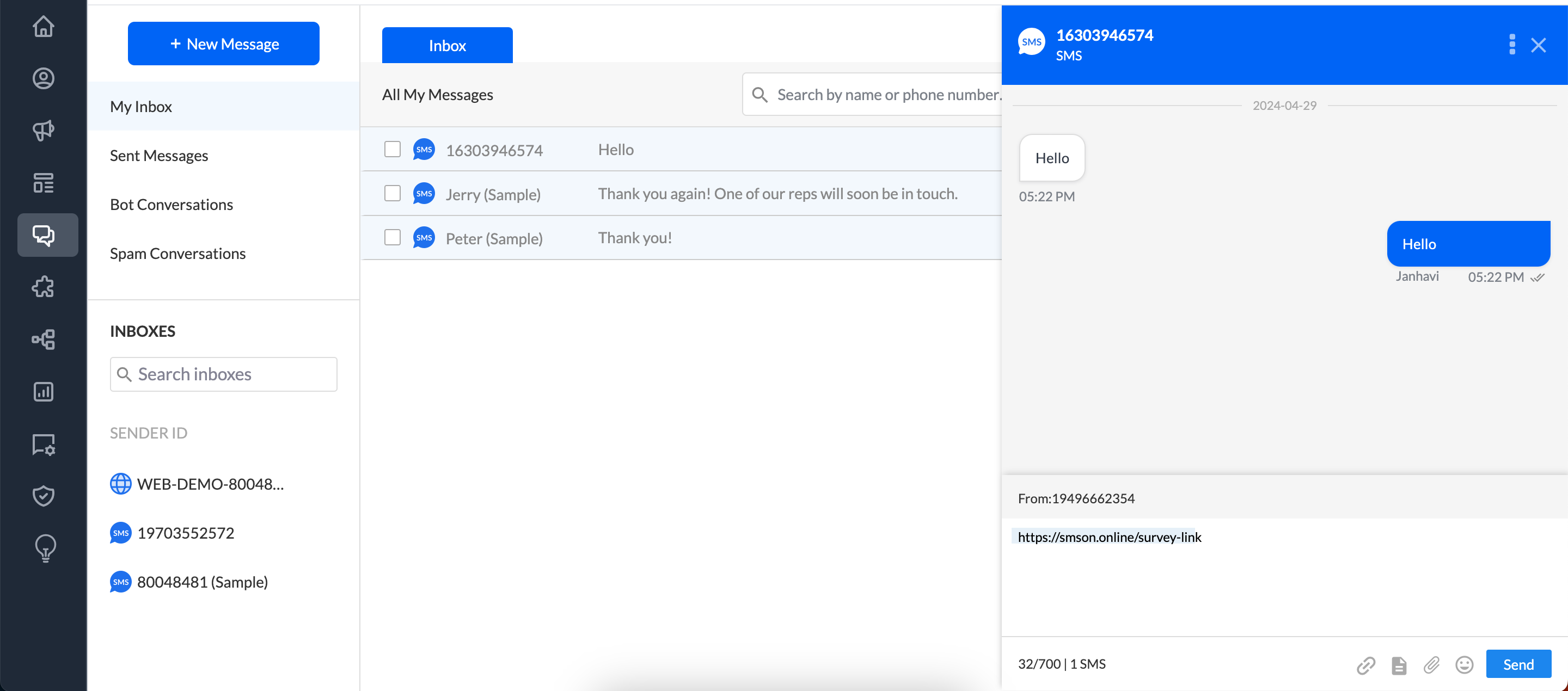
How can I configure a shortened URL?
Portal administrators can configure the settings in URL Shortening features using the URL Shortening tab.
Click on the ‘URL Shortening’ from the navigation bar the following page will appear:
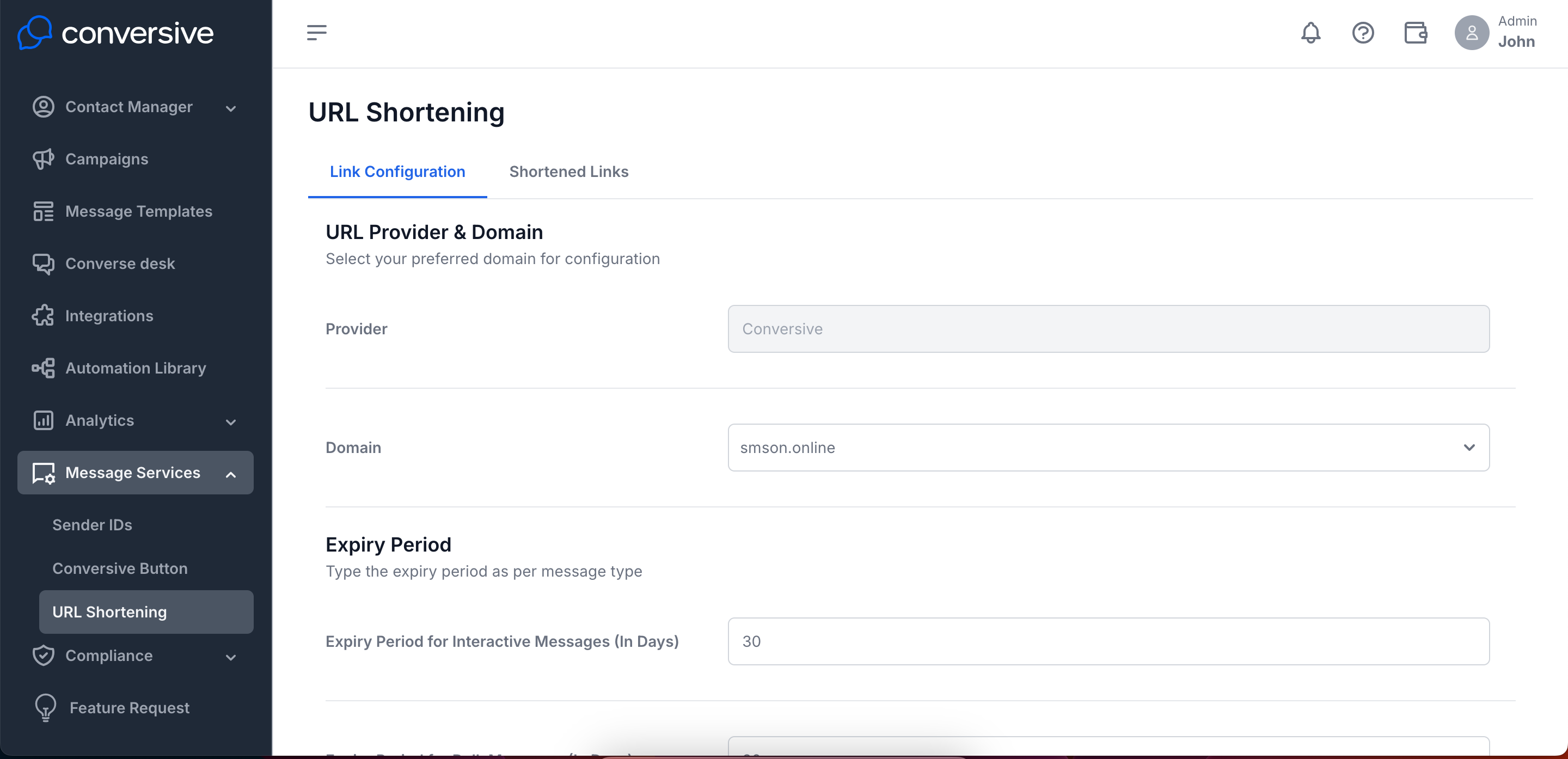
Follow the steps below to configure the URL Shortening Settings:
Select a ‘Provider’ from the drop-down list:
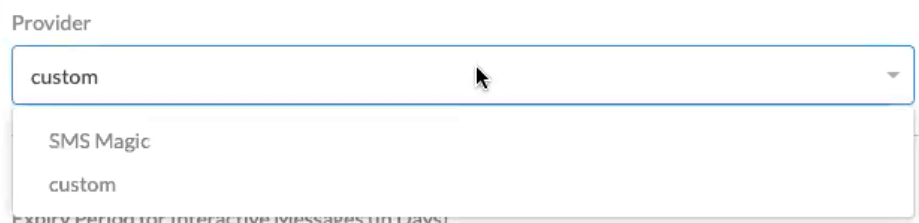
Select a ‘Domain’ from the drop-down list:
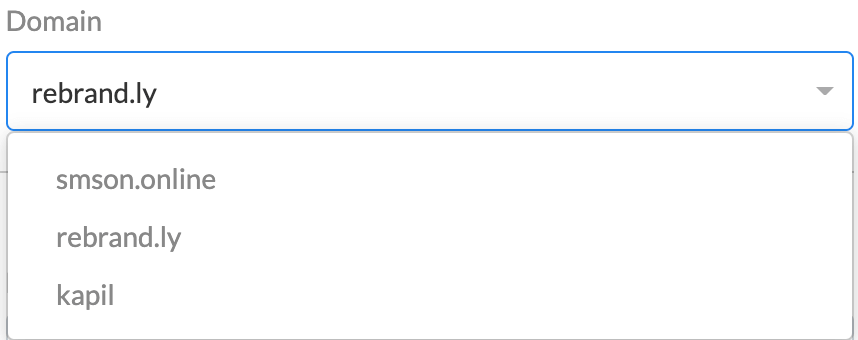
The expiry period for the shortened links needs to be set in the setting page for respective features: Interactive Messages’, ‘Bulk Messages’, and ‘Automated Messages’.
Notes:
1. To use the URL Shortening and Tracking feature, it must be first enabled for your account
2. The Workspace ID is a predefined field
How can I manage shortened links?
Here, the admin can get all the information about shortened links that are created from the account such as Long URL, Short URL, Domain, Slash URL, Status URL Expiry, and Click Count.
Note: Expired short links become a dead link.
Admin has the access to check the duration or expiry of the shortened links. Admins should ensure to remove short links from the templates before they expire.
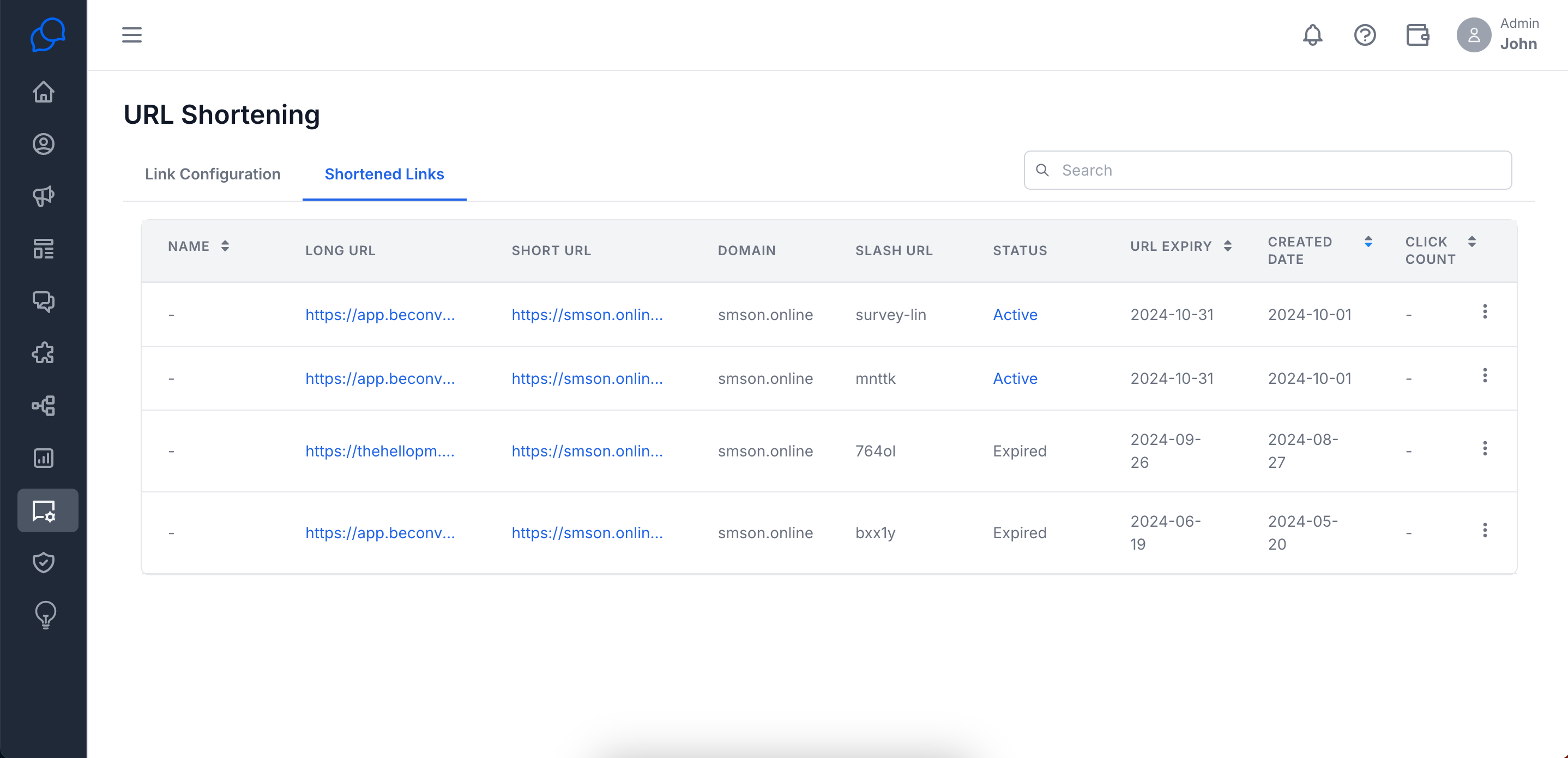
Follow the steps below to Deactivate Short Links:
Click on the
 icon, the following options will appear:
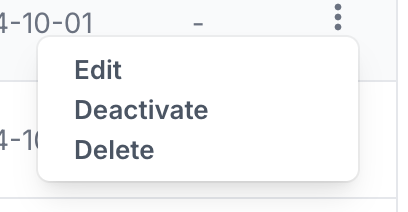
Click on ‘Deactivate’ the following message will appear:
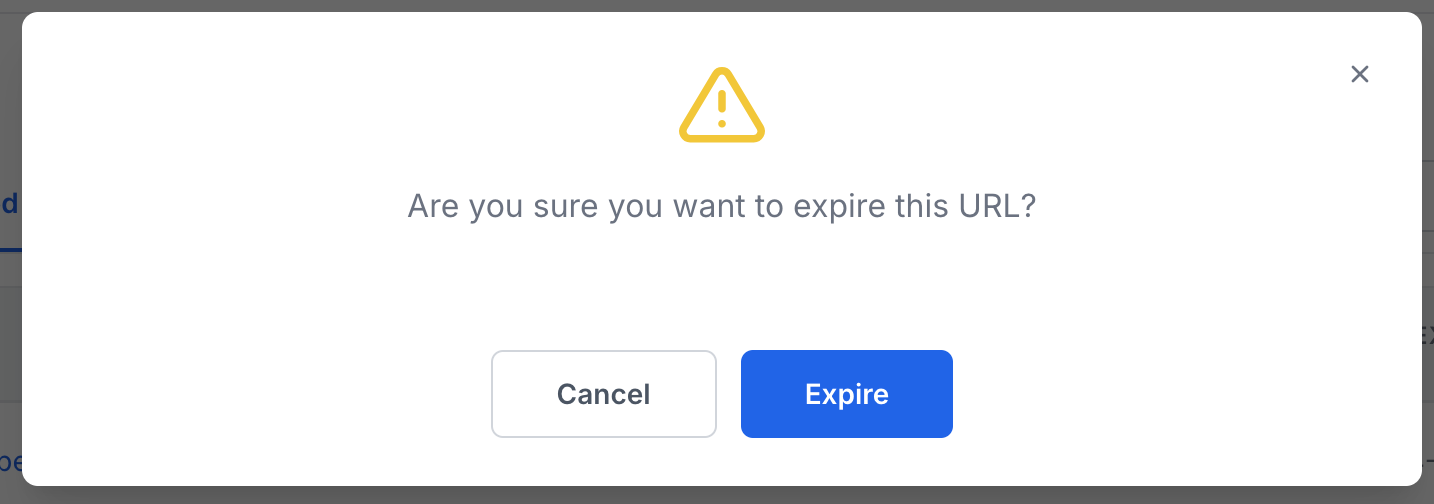
Click on the ‘Expire’ button to permanently expire the links
Click on ‘Cancel’ if you don’t want to expire the link
How can I delete a Shortened URL?
The option to delete short links has been provided purely for data cleanup. Any short link that is deleted would free up space and all existing click-tracking records will be lost; the short link would become a dead link. Admins are advised to check with businesses and delete only those short links that are very old and have not been used in messages for some time.
Notes:
1. Admins are advised to ensure that short links are removed from templates before deleting them.`
Follow the steps below to ‘Delete’ Short Links:
Click on the three-dot icon, and the following option will appear:
Click on ‘’Delete’ and the following message will appear:
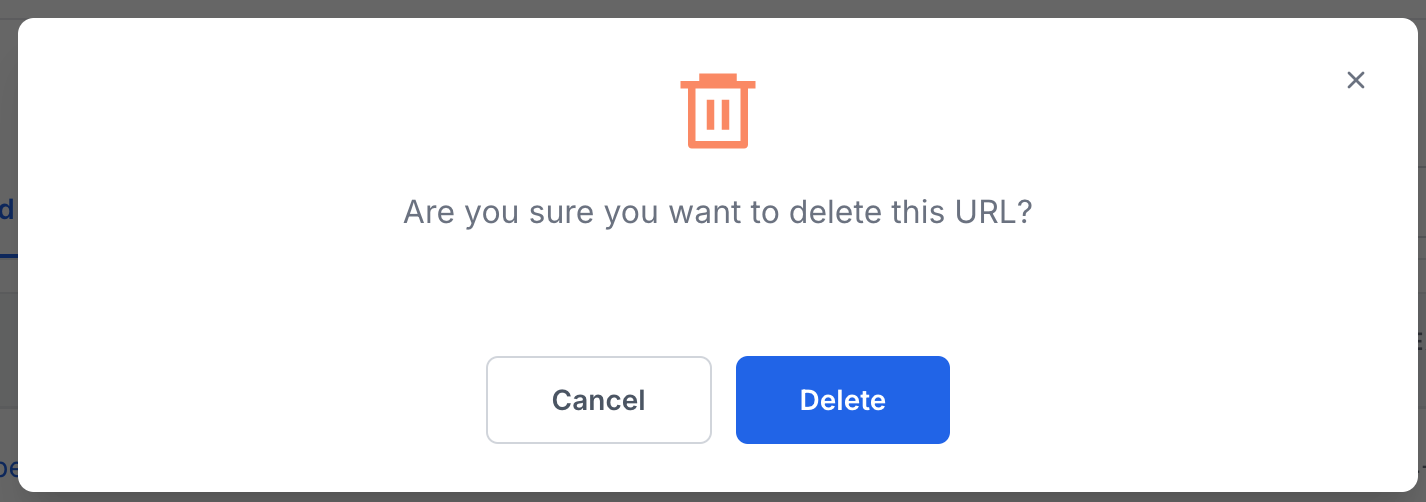
Click on the ‘Delete’ button to permanently delete the links
Click on ‘Cancel’ if you don’t wish to delete the links
Frequently Asked Questions
1. Can I get a custom domain for URL shortening?
Yes, you can configure a custom domain for URL shortening. Simply navigate to the URL Shortening tab in the settings and select a custom domain from the available options. If the desired domain isn’t listed, contact your account administrator to discuss custom domain options.
2. How can I enable URL shortening?
To enable URL Shortening and Tracking, you must have this feature activated for your account. Contact your account administrator or support team to ensure URL Shortening is enabled. Once enabled, you can configure and manage the feature in the URL Shortening tab.
