Create your LINE Business account
Click Create an account.
Click Sign up with email and follow the prompts to create an account.
You will be redirected to the LINE Official Account Manager webpage. Click on the “Create New” LINE official account button.
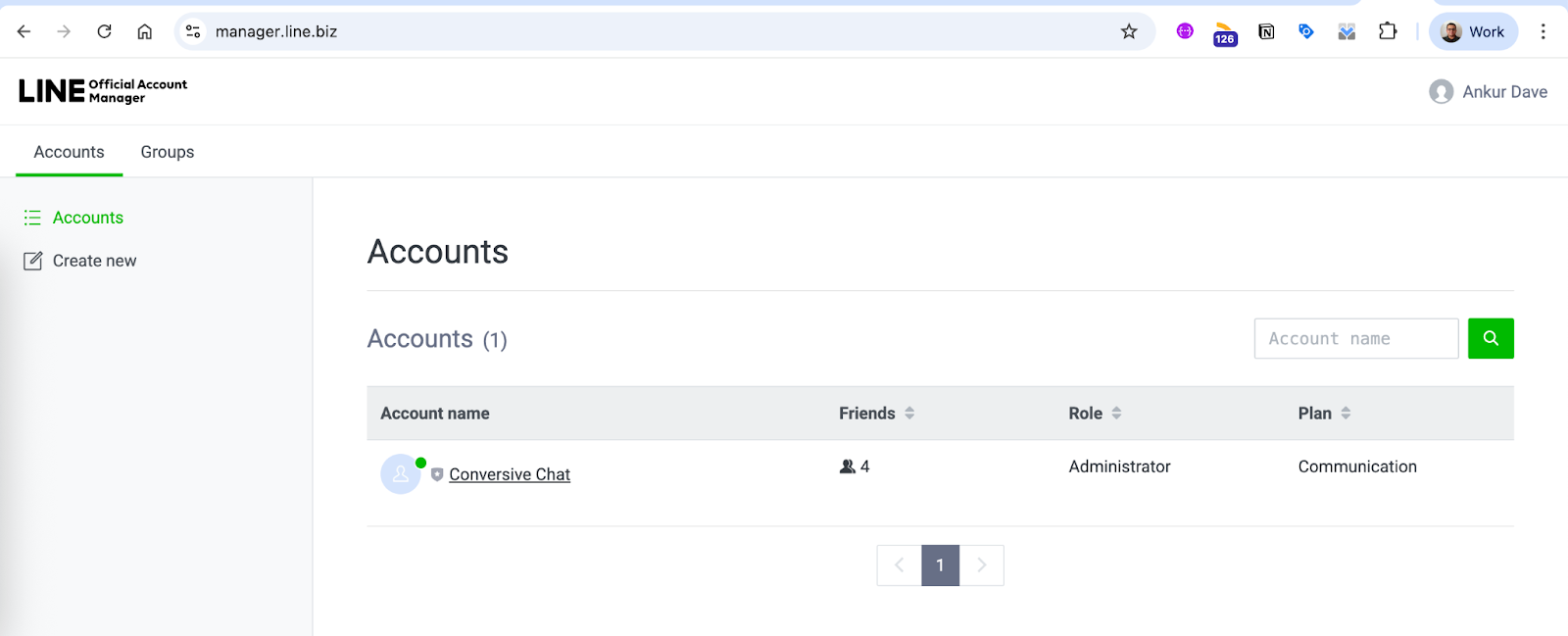
Provide the required information and submit the application for a LINE business account.
Once done, your LINE official account will be ready.
Create a LINE Developers account
Go to LINE Developers Console.
If not already logged in, click Log in with business account to log in.
Provide the necessary details.
Click the Create my account button.
Create a new provider
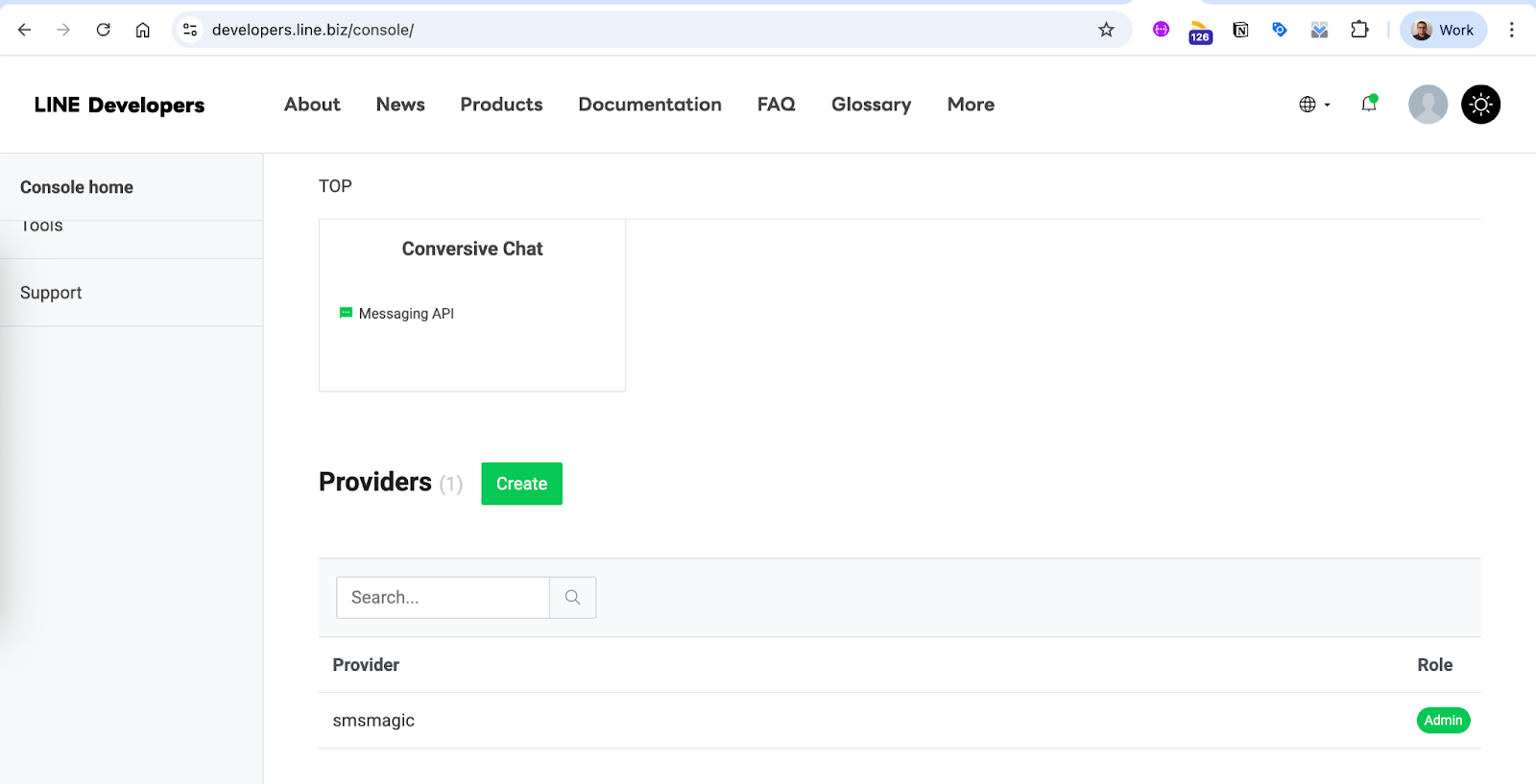
Once you create the LINE Developer account, you will be prompted to create a new provider. Click the Create a new provider button.
Enter a provider name and click Create to confirm.
Create a LINE Messaging API channel
Click on the newly created provider and go to the Channels tab.
Click on the Create a Messaging API channel option.
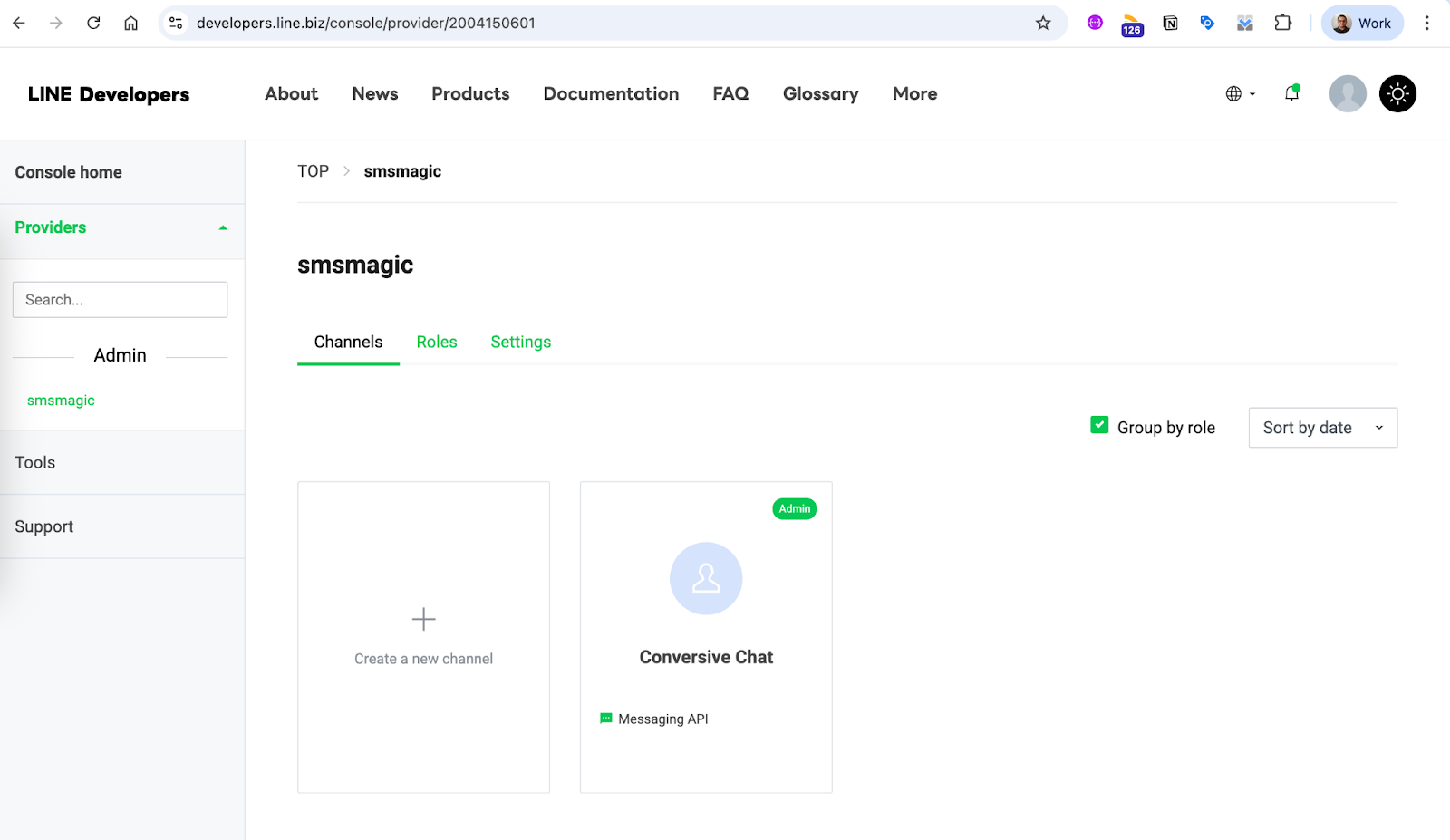
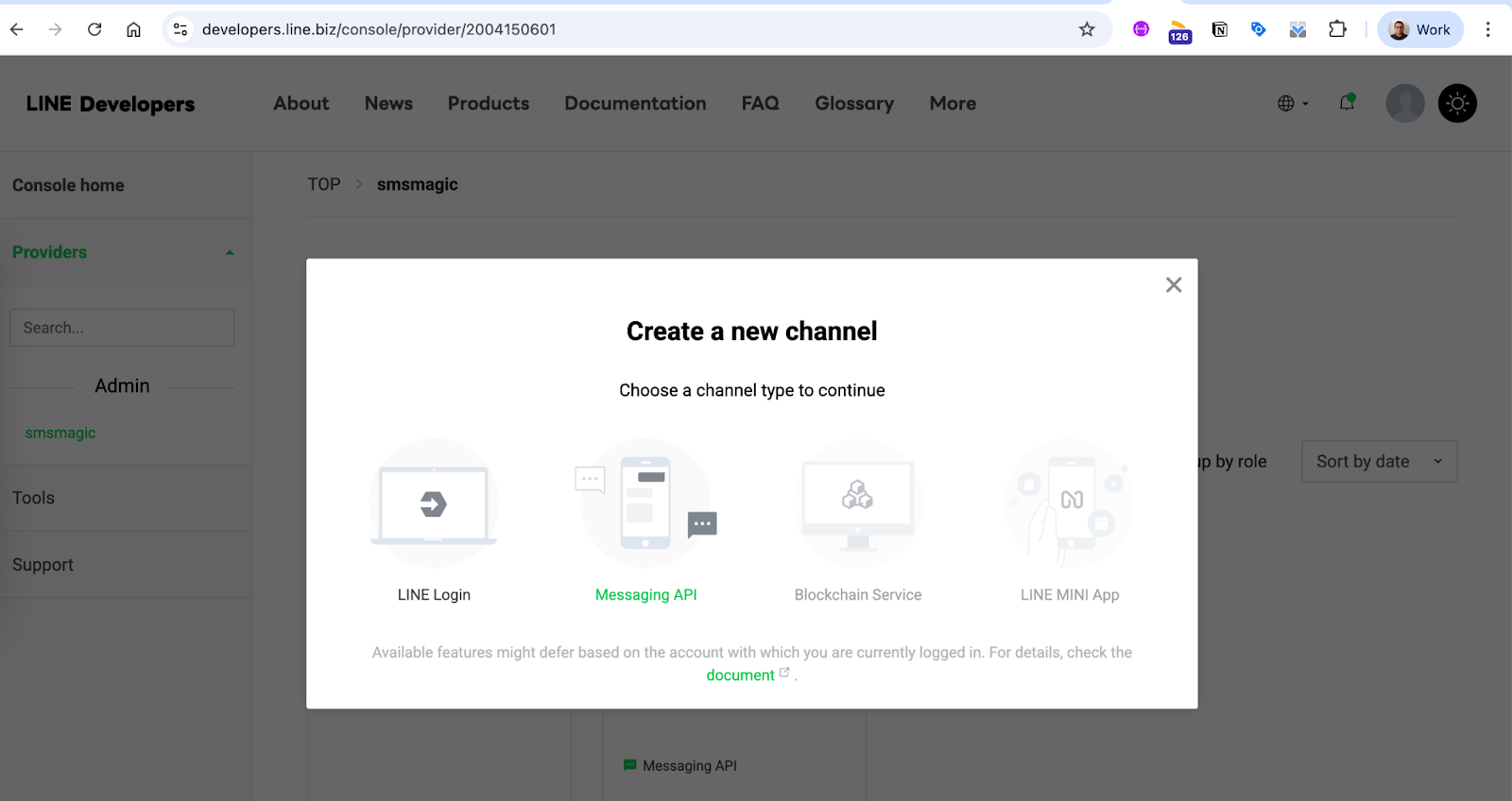
Select Messaging API, Fill the necessary fields and create a messaging channel.
Configure the channel
Go to the channel you created for the bot.
Go to the Messaging API tab.
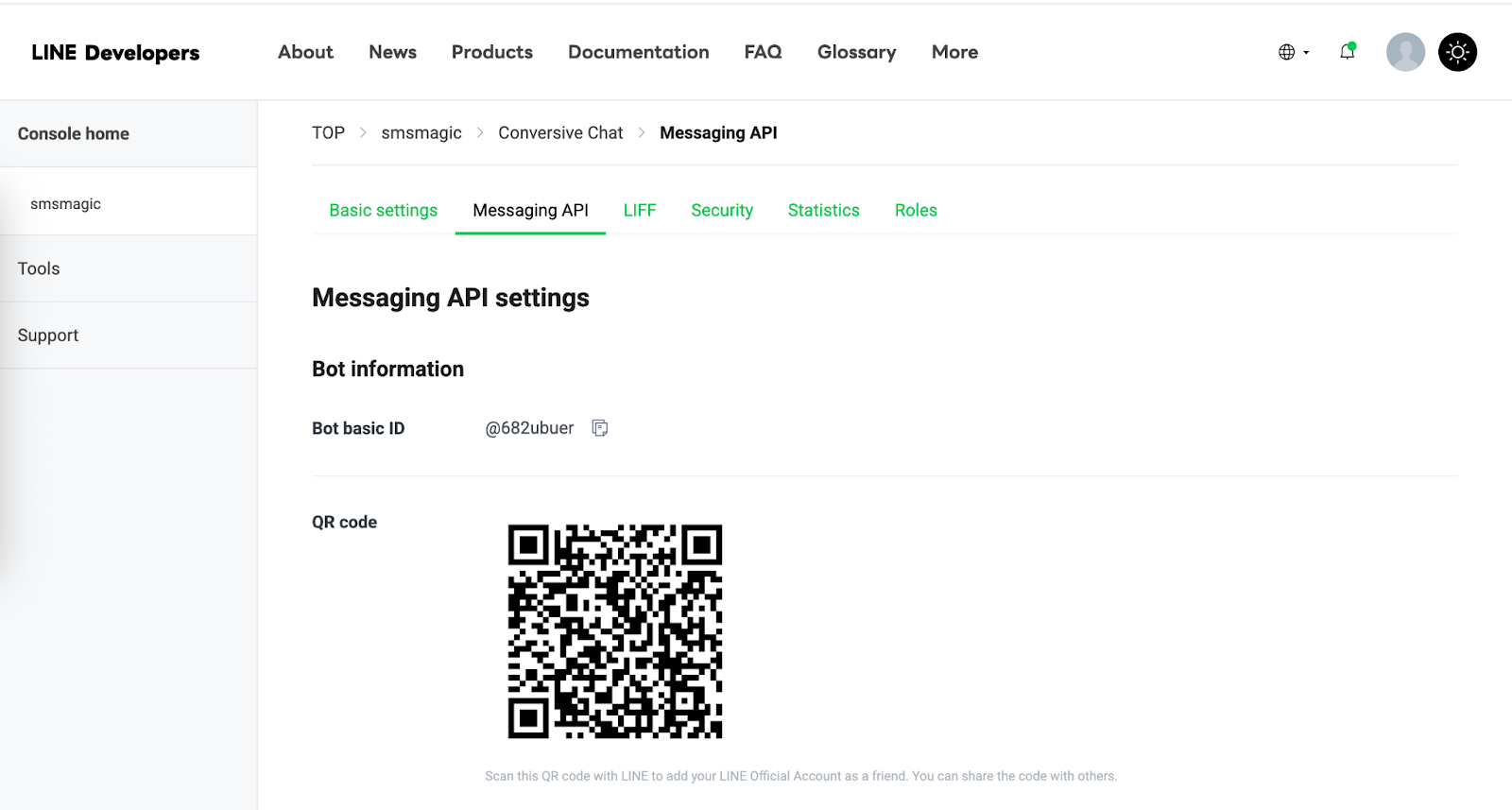
Under Webhook settings, click the Edit button in the Webhook URL section.
Enter the Webhook URL, Refer the below table for webhook URL.
Scroll down to the LINE Official Account features section and click Edit against any option.
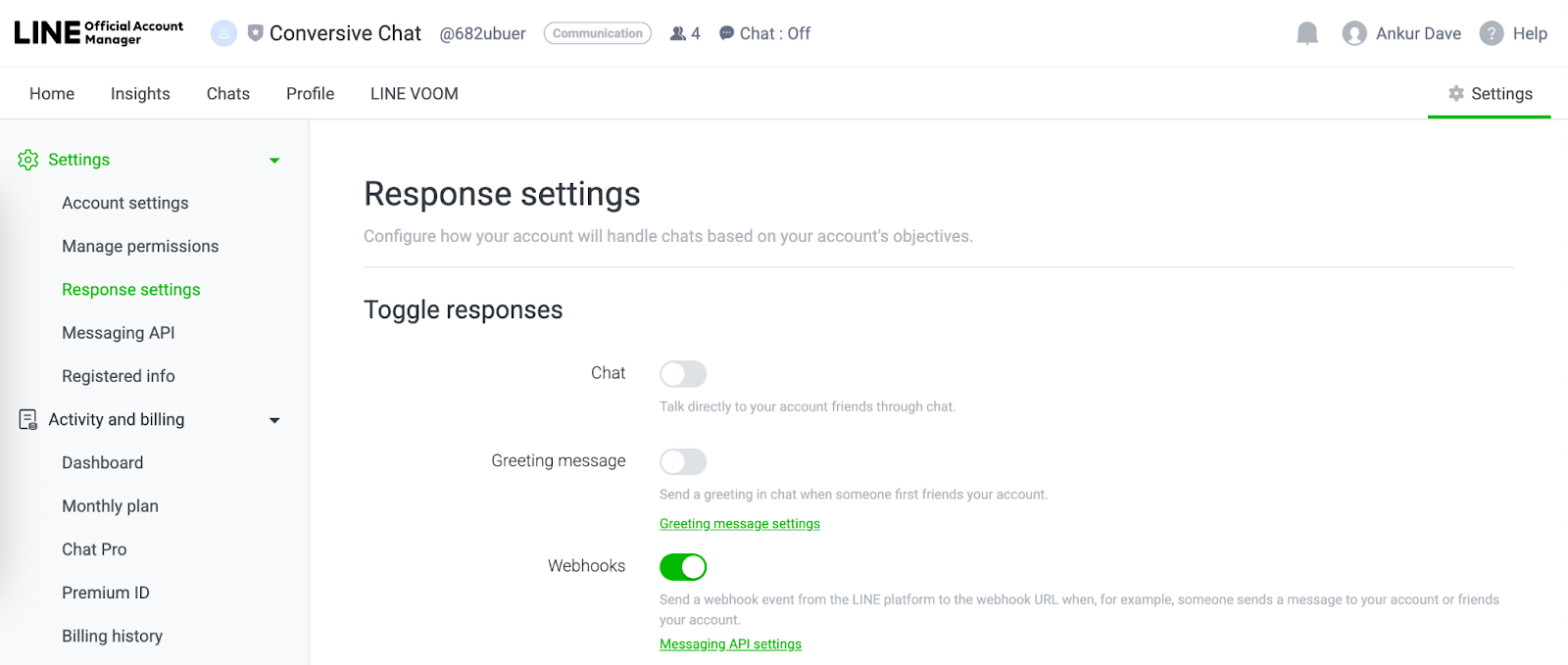
You will be redirected to the Settings page. Click the Response settings in the left sidebar.
Disable Greeting messages, and Auto-response messages. Enable Webhooks under Toggle responses.
Webhook URL Reference
ENV | Conversive App URL | Webhook URL |
US | ||
AUS | ||
EU |
