
Connecting Different Business Accounts under One Conversive Account for Centralized Licensing and Billing Management
To meet the needs of businesses with multiple departments, locations, or subsidiaries, Conversive offers a centralized account management system. This feature allows a Master Admin to connect multiple associated accounts, manage licensing, and oversee billing from a single platform. Here's a step-by-step guide to help you manage this process:
Creating an Account and Transferring Users and Credits
Steps to Create Different Business Accounts from Master Account
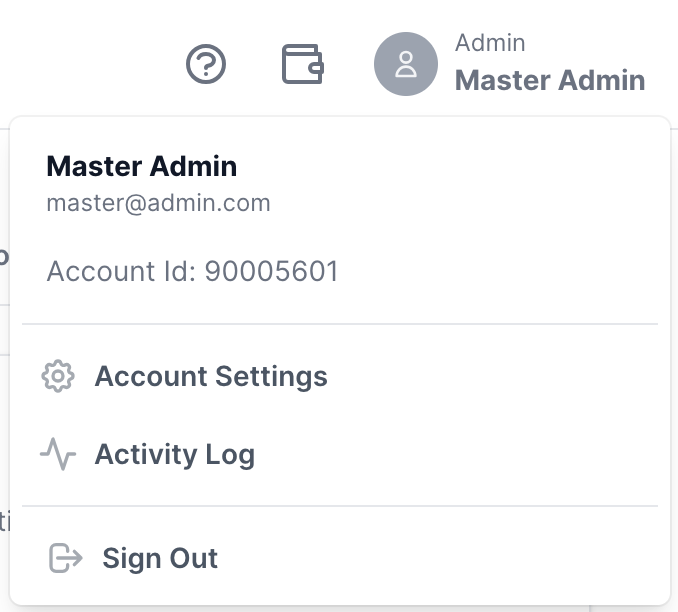
Go to Account Settings
Navigate to your account settings from the main menu.
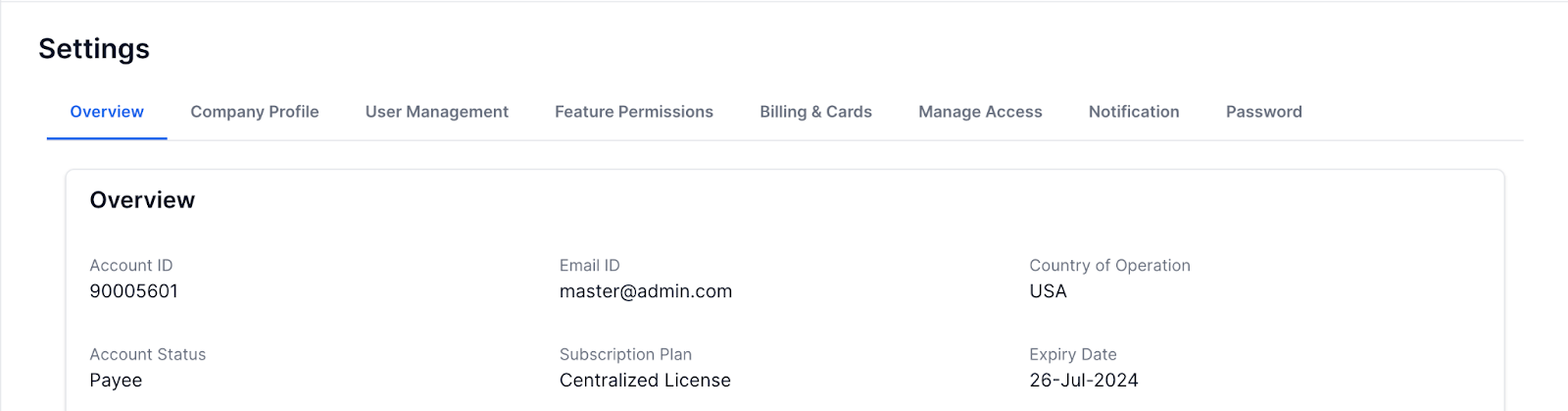
Go to Overview
View the 'Overview' tab.
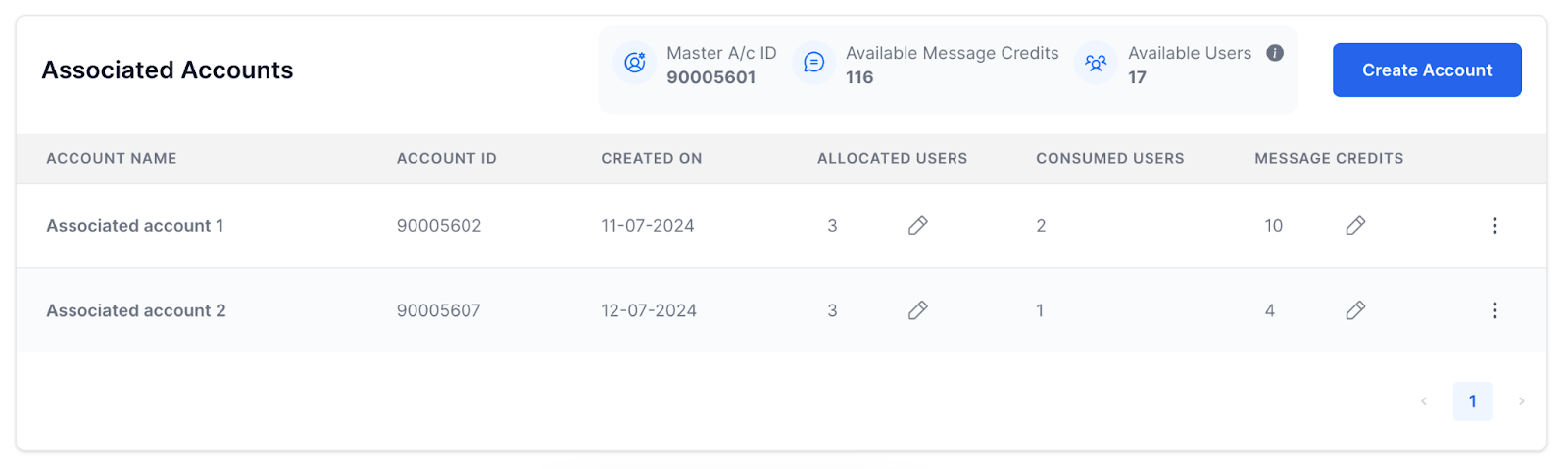
Click 'Create Account'
Select the 'Create Account' option.
Add Account Name
Enter the desired name for the new account.
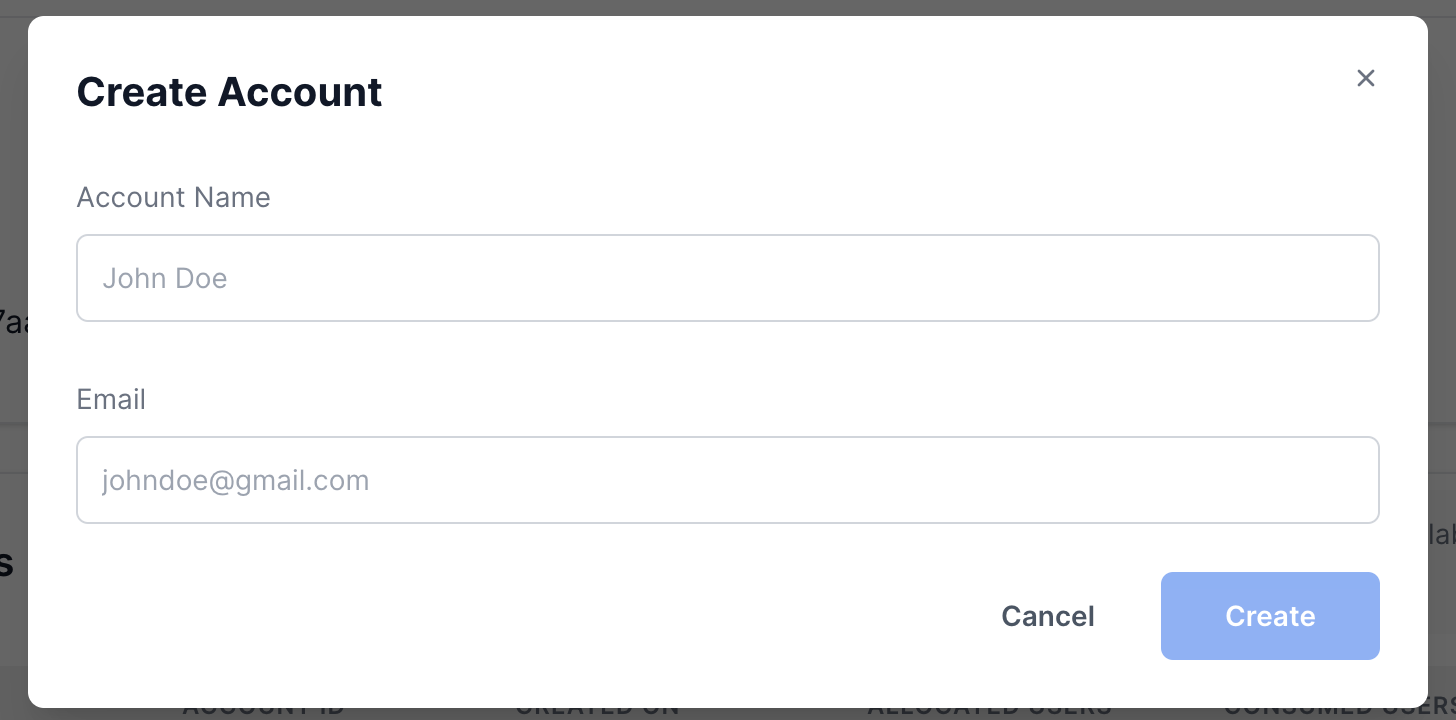
Add Admin User's Email Address
Input the email address of the user who will be the admin of the new account.
Verification Process
A verification link will be sent to the admin user's email inbox.
If the user has not yet verified, the admin can resend the invite by clicking on the three dots next to the user's name and selecting 'Resend Invite'.

Admin Verification
Once the associated admin verifies the account, they will be able to access the associated account.
After verification, the Master Admin can transfer credits and users to the associated account.
Transferring Credits
Edit Option for Verified Accounts
For verified associated accounts, locate the 'Edit' option.

Adding Credits
Click on 'Edit' and enter the number of credits you wish to transfer from the master account to the associated account.

Transferring Credits
The specified credits will be transferred to the associated account.
Managing Credits
The master admin can transfer back unused credits to the master account as needed.
Transferring Users Count
Edit Option for Verified Accounts
For verified associated accounts, locate the 'Edit' option.

Adding Users
Click on 'Edit' and enter the number of users you wish to transfer from the master account to the associated account.

Transferring Users
The specified users will be transferred to the associated account.
Managing Users
Once users are transferred, the associate account admin can start inviting users.
The master admin can transfer back non-allocated users to the master account as needed.
Responsibilities of Admin Users
Responsibilities of Master Admin Users
Account Creation and Management
Responsible for creating and verifying associated accounts.
Manage the transfer of credits and users to associated accounts.
Resend verification invites when necessary.
Credit and User Allocation
Allocate and transfer credits and users to associated accounts.
Retrieve unused credits and non-allocated users back to the master account.
Responsibilities of Associated Account Admin Users
Account Verification
Verify the account using the verification link sent to their email.
User and Credit Management
Manage the credits received from the master account.
Invite and manage users within the associated account.
Important Notes
Ensure that all email addresses are correctly entered to avoid delays in verification.
Regularly check the status of credits and users to ensure optimal allocation and usage.
Both master admins and associated account admins should communicate effectively to streamline the transfer and management processes.
For any issues or further assistance, please contact support.
