
User Documentation for Conversive - Use case Automation for Nurture
Overview
This document provides guidance on using the Conversive to send Nurture series messages.
Prerequisites
- Ensure your CRM is connected in Conversive via Integration.
Activate the Nurture UseCase
Step 1: UseCase
Users needs to login to Conversive
The User needs to look for the “UseCases” on the Main Menu
User needs to select the template of Nurture Usecase.
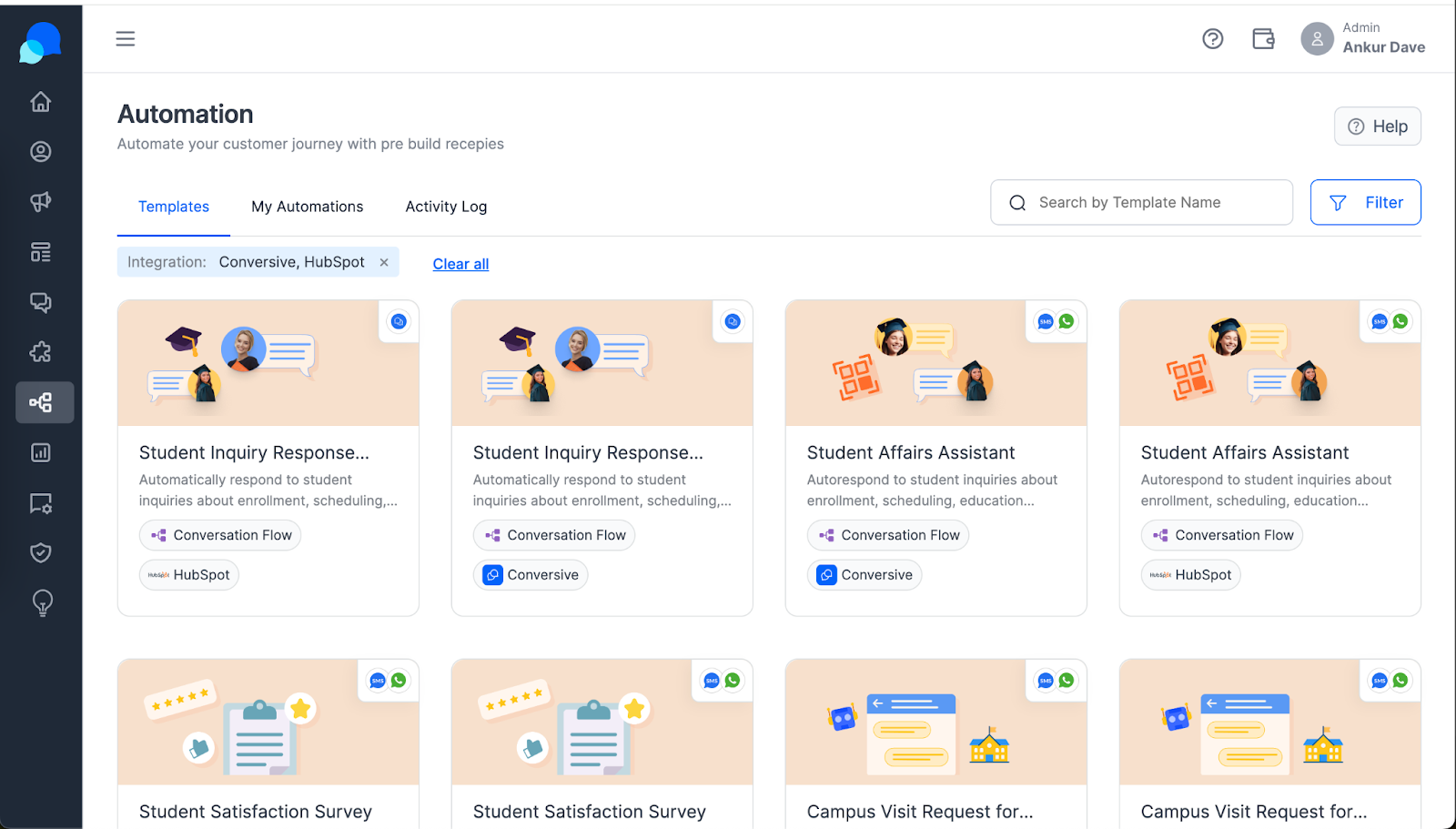
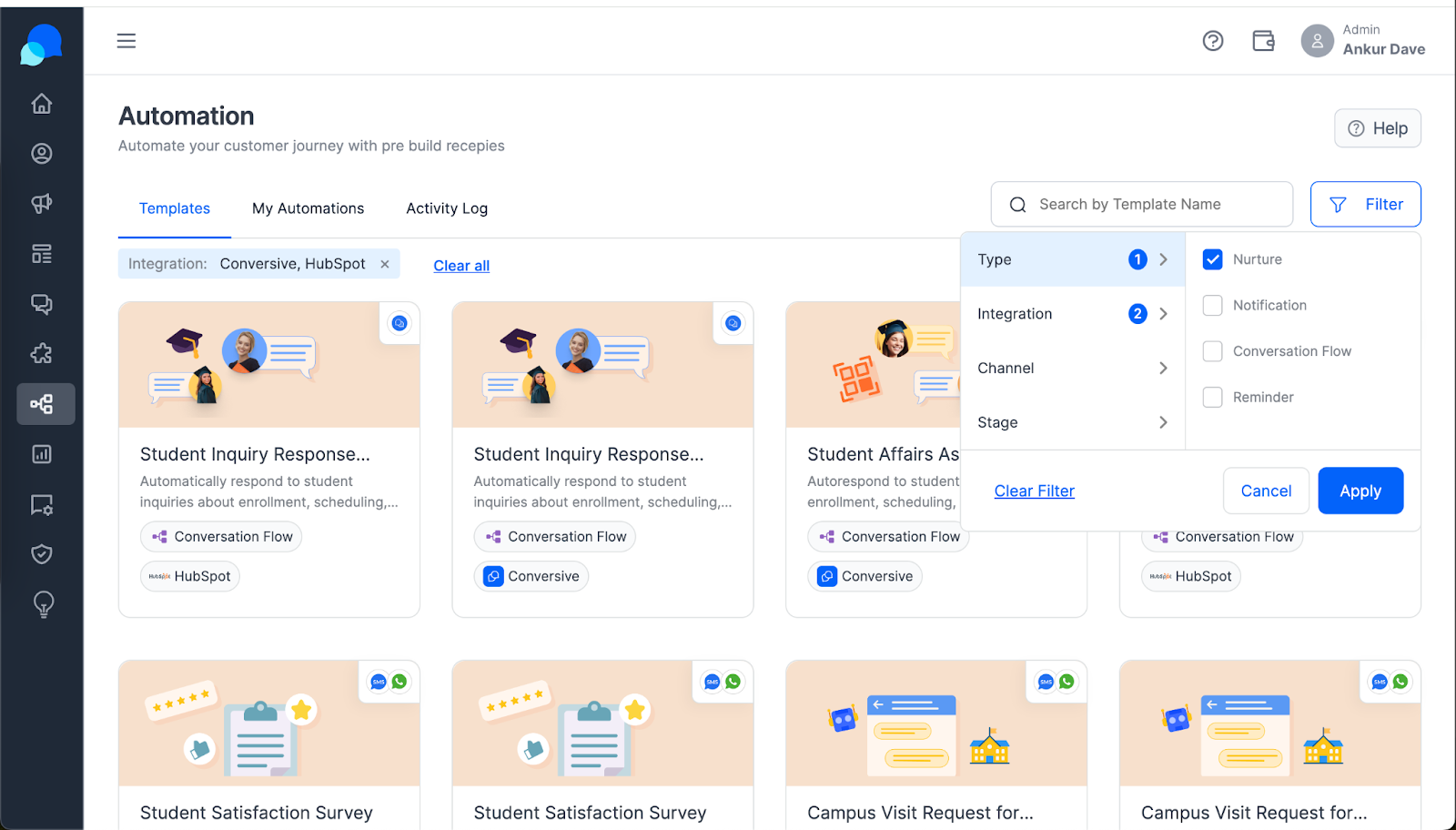
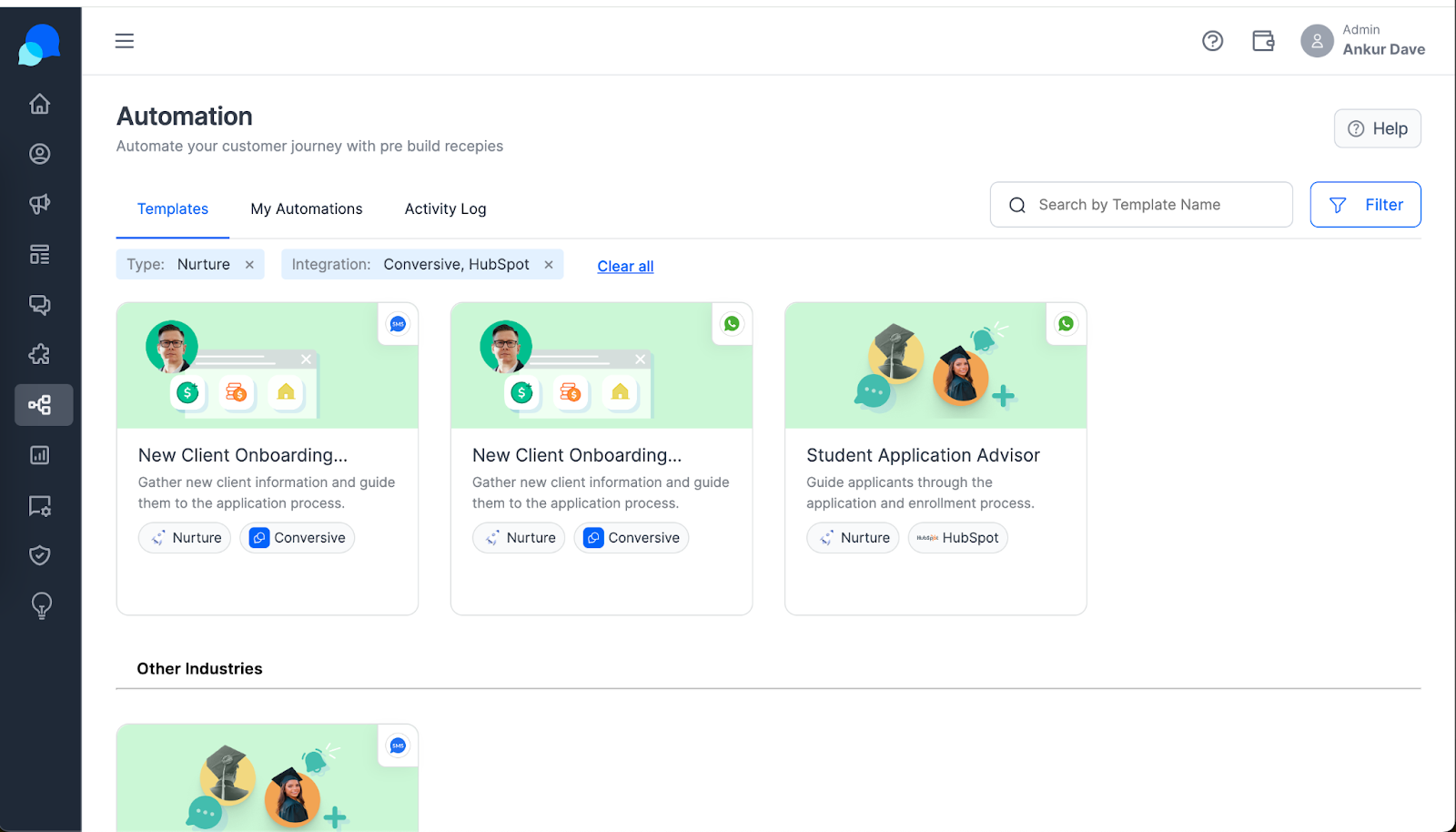
Step 2: Template Selection
Once the selection is done, to activate the follow user must click on the template
Once the template has been selected and opened, User/customer needs to activate the automation by clicking on “Get this Automation”
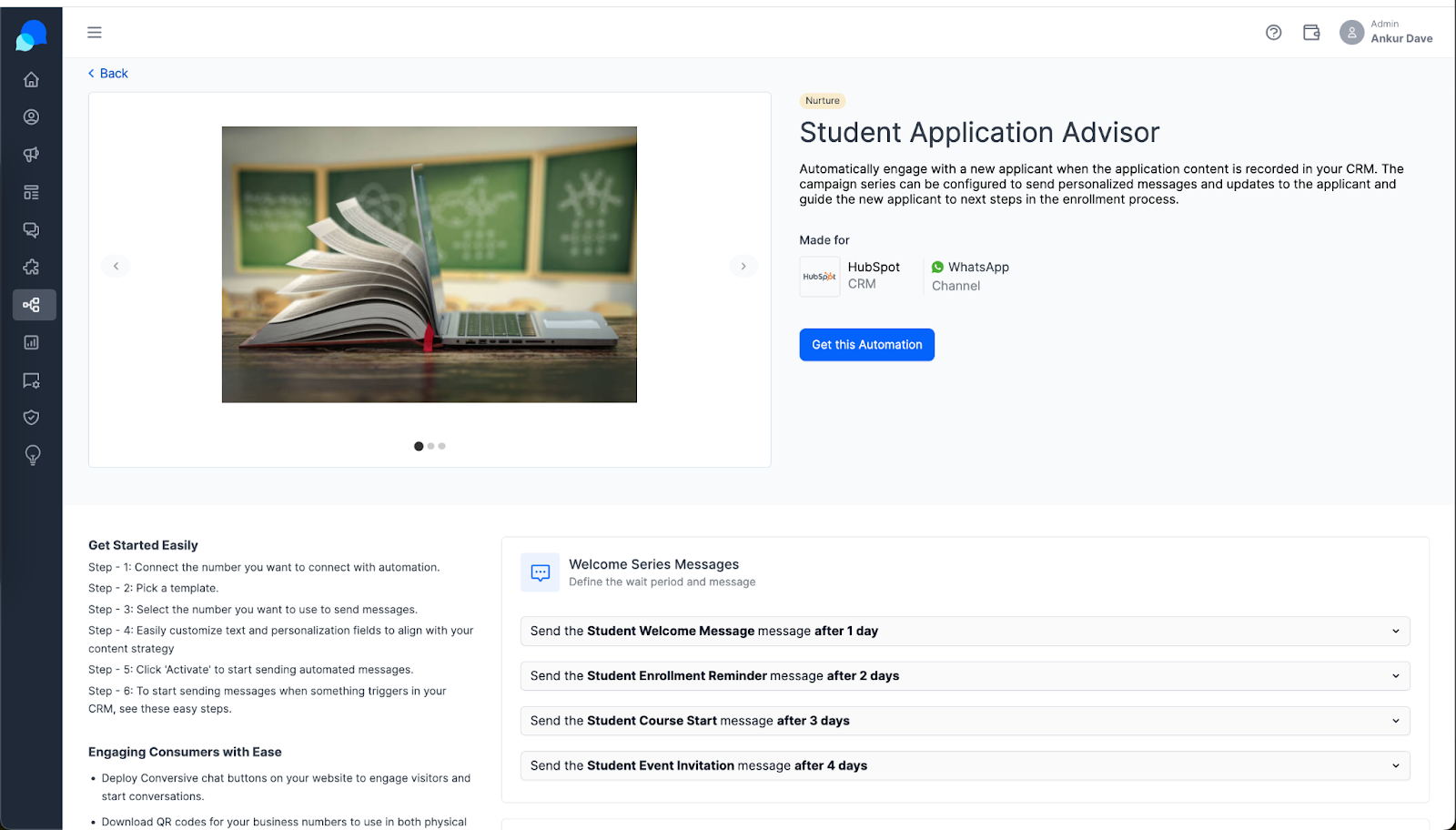
Configure Usecase with CRM Object and Template
Step 1: Selection of Mapping and Setting
User needs to select the CRM Object type such as “Contact, Companies, deals and tickets” in case of HubSpot
Then, the User needs to select the Phone field category which can be “Mobile Number, Phone Number”
Then, the User will select the “SenderID” from which they want to send Message.
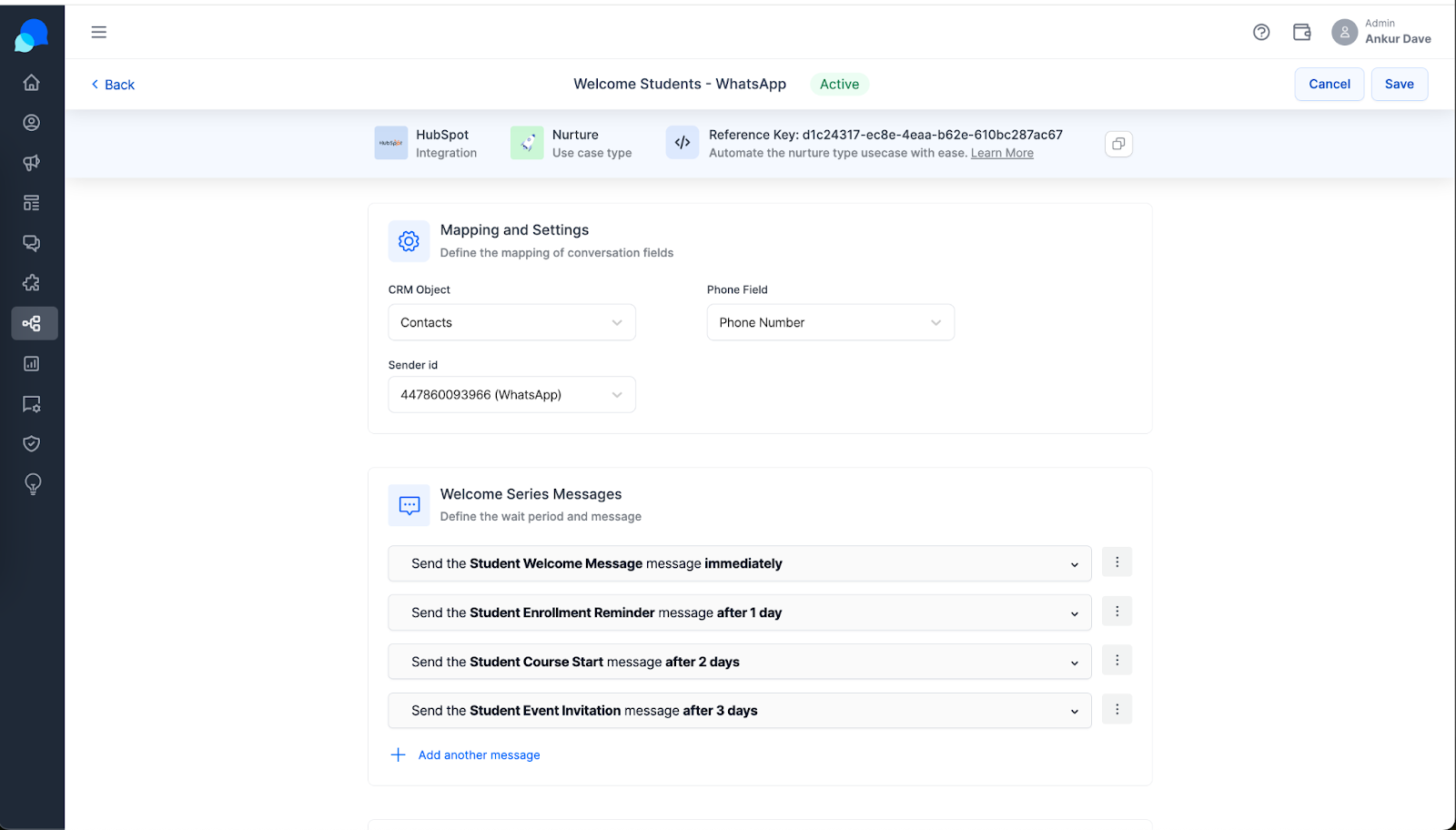
Step 2: Selection of Message template
Once the Mapping and setting is done, then the user can select the message template and timings when to send the message
User can modify the message template as per their requirement and can modify the message template as per their requirement
Once the template selection is done. The user can setup the exit criteria

Trigger Nurture Usecase from Zoho
Step 1: Requirements in the ZOHO CRM:
To use this in any of the Zoho family CRM. The particular CRM should have webhook option available in It
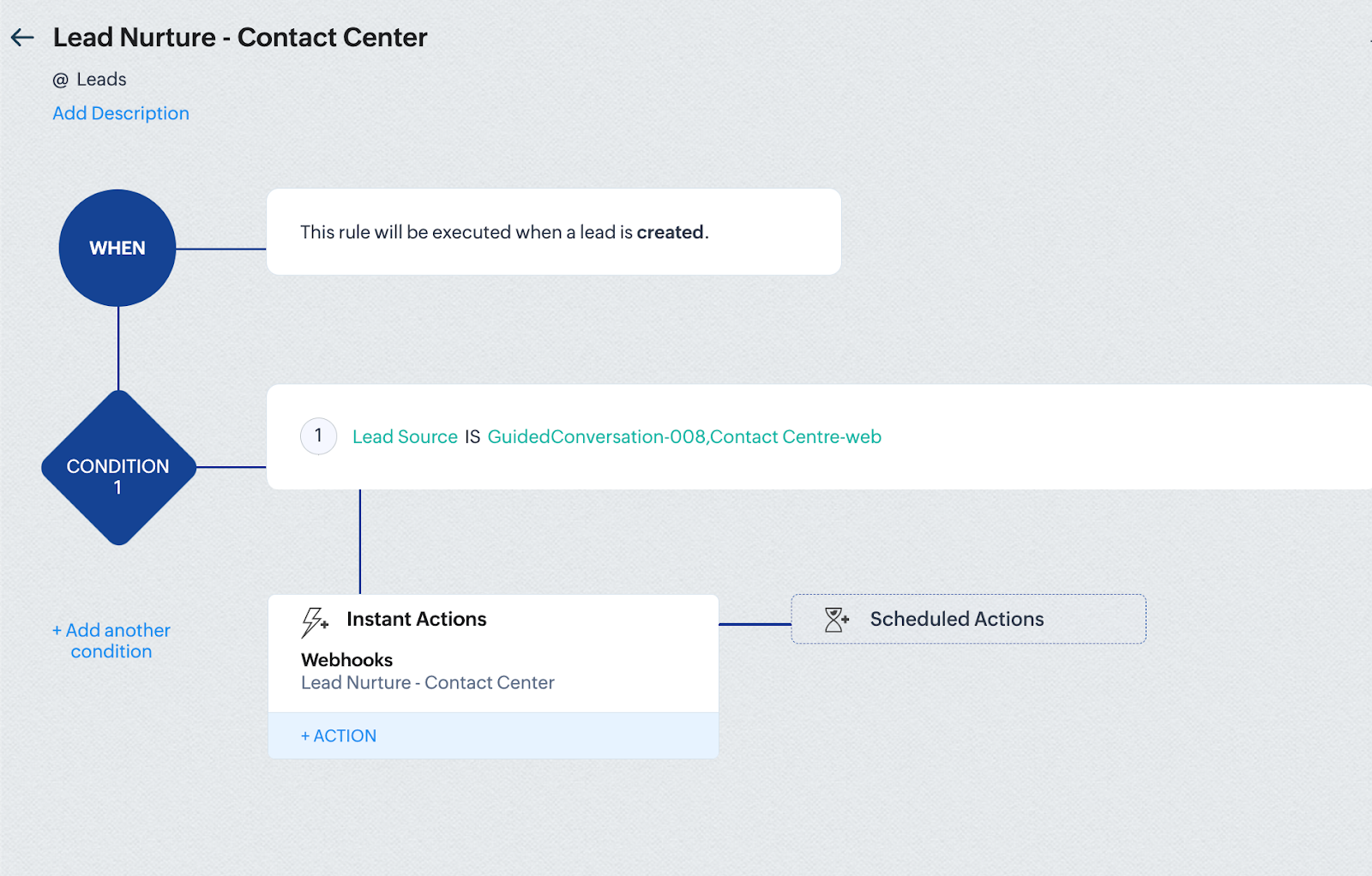
Example: We will trigger the UseCase when a Lead is Created this condition is created in the Zoho Workflows
In ZOHO the Workflow will start by asking on which object you are creating the flow. After that there will be a condition of when we should trigger this. Created/updated/deleted
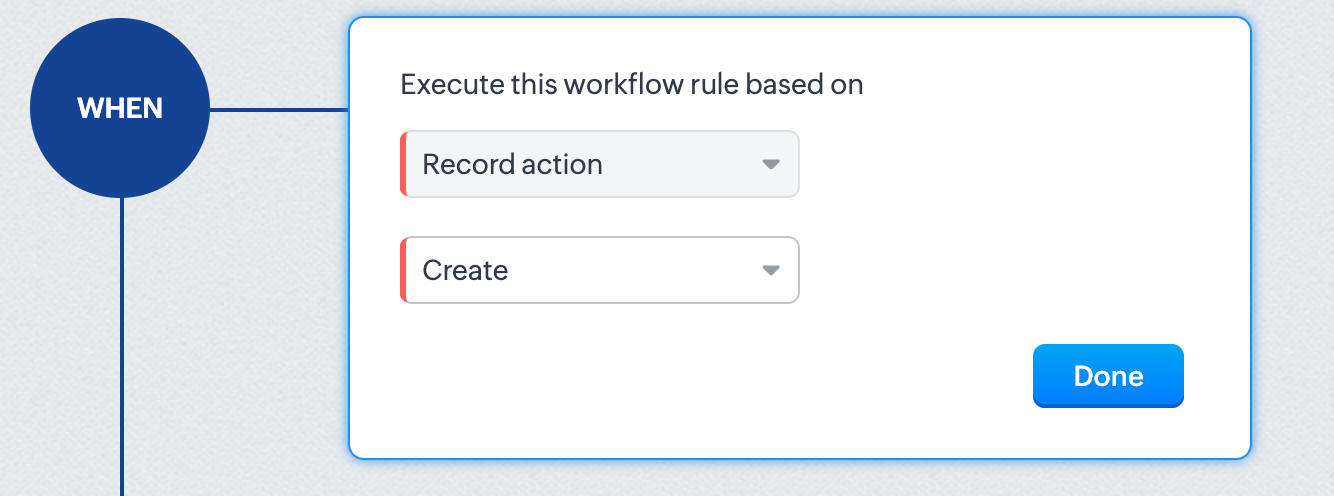
After the condition Select all leads if it will be applicable to all the leads → Instant Actions → WebHooks → Create a webhook/select an already created webhook.
Step2: Create a WebHook:
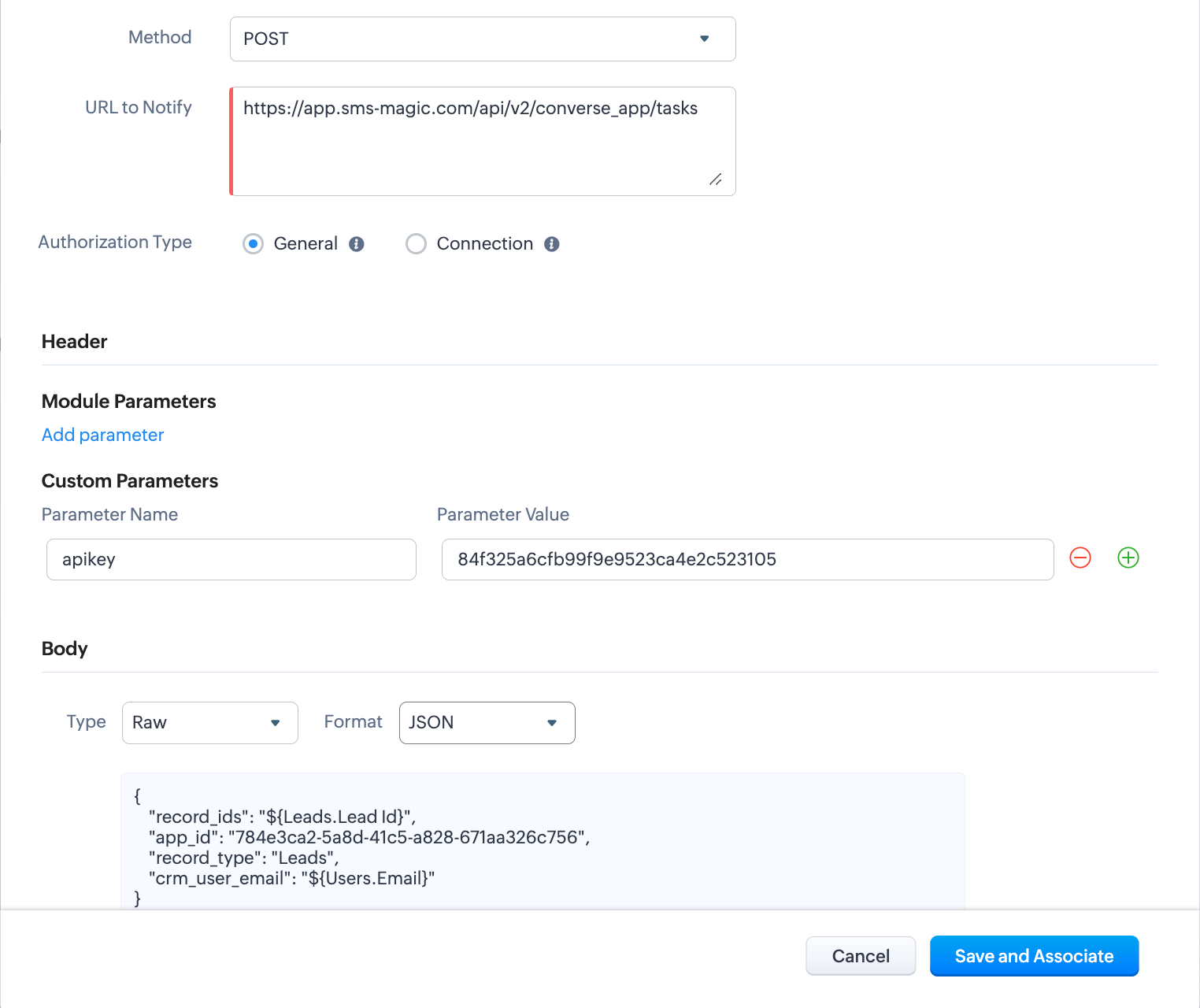
Provide a name to the webhook.
Method : POST
URL: https://app.sms-magic.com/api/v2/converse_app/tasks
Authorization Type: General
Custom Parameters → apikey : provide the SMS-Magic Portal APIKey ( you can find this in Get Started Page)
Body → Type: Raw and Format : JSON
Paste the following Code:
{ "record_ids": "${Leads.Lead Id}", #give the {object.objectID}
"app_id": "784e3ca2-5a8d-41c5-a828-671aa326c756", #Paste your APPID here.
"record_type": "Leads", #object
"crm_user_email": "${Users.Email}" #SMS_Magic Portal email ID}
Flow Activation:
Save and Activate the flow to start the flow.
Video Reference for the Automating Your Messages
Reminder - Conversive Reminder Automation
