Overview of the Conversive Messaging API Document
The Conversive Messaging API empowers businesses to optimize communication through SMS, offering robust features for sending messages, tracking delivery statuses, and managing messaging workflows efficiently. Built for flexibility and scalability, the API integrates seamlessly with existing systems, enhancing customer engagement and streamlining operations.
Key Features
Plain Text Message
Send individual plain text SMS messages to your audience.
Refer: https://www.postman.com/conversive/conversive-messaging-api/request/hdxg3kj/plain-text-message
Bulk Text Message
Send plain text SMS messages in bulk to multiple recipients simultaneously.
Refer: https://www.postman.com/conversive/conversive-messaging-api/request/ifdylfr/bulk-text-message
Get Balance:
Retrieve the remaining SMS credit balance for your SMS Magic account.
Refer: https://www.postman.com/conversive/conversive-messaging-api/request/u8p8lzp/get-balance
Tracking Delivery Status:
Configure Incoming & Delivery Push URLs in the Conversive portal. This ensures incoming SMS and delivery reports are pushed to the specified URLs for seamless tracking.
Base URL
Authentication
All requests must include a valid API key in the userPayload.apiKey field of the request body.
Headers:
Key | Value |
Content-Type | application/json |
Endpoint: Send Plain Text SMS
Method:
POST /api/v2/message/send
Request Parameters:
Parameter | Type | Required | Description |
userPayload.type | string | Yes | Always set to api. |
userPayload.apiKey | string | Yes | The API key for authentication. |
messageDetails | array | Yes | A list of messages to send. Each message contains: |
messageDetails.soure | strig | Yes | The source number for sending the SMS. Must be 8001. |
messageDetails.sendr | object | Yes | Details about the sender. Contains phone and channelType. |
messageDetails.recipient | array | Yes | Details about the recipient(s). Contains phone and channelType. |
messageDetails.messageId | string | No | A unique identifier for the message (optional). |
messageDetails.message | string | Yes | The message content. Contains type and content.messageText. |
Example Request:
POST https://api.beconversive.com/api/v2/message/send
Content-Type: application/json


{
   "userPayload": {
       "type": "api",
       "apiKey": "12345-abcde-67890-fghij"
   },
   "messageDetails": [
       {
           "source": "8001",
           "sender": {
               "phone": "+11234567890",
               "channelType": "SMS"
           },
           "recipient": [
               {
                   "phone": "+19876543210",
                   "channelType": "SMS"
               }
           ],
           "messageId": "test123",
           "message": {
               "type": "text",
               "content": {
                   "messageText": "Hello! This is a test message."
               }
           }
       }
   ]
}Responses
Successful Response
{
   "response": {
       "vstatus": "success",
       "responseText": "Request(s) queued successfully."
   }
}Error Responses
{
   "response": {
       "vstatus": "failed",
       "responseText": "FORBIDDEN-API-KEY"
   }
}Notes
Source: The source parameter must always be set to 8001.
Sender Channel Type: Must always be set to SMS.
Recipient Channel Type: Must always be set to SMS.
Message Content: For text messages, use "type": "text" and include the message in content.messageText.
Authentication: Replace <API_KEY> with your actual API key in the userPayload.apiKey field.
Postman collection : https://www.postman.com/conversive/conversive-messaging-api/overview
Tracking Delivery Status:
Configure Incoming & Delivery Push URL from Conversive portal and for individual accounts
Incoming Number Configuration from Conversive Portal:
Follow the given procedure to assign Incoming number to your account from the Conversive portal.
Log in to the Conversive portal.
On the navigation bar Sender IDs.
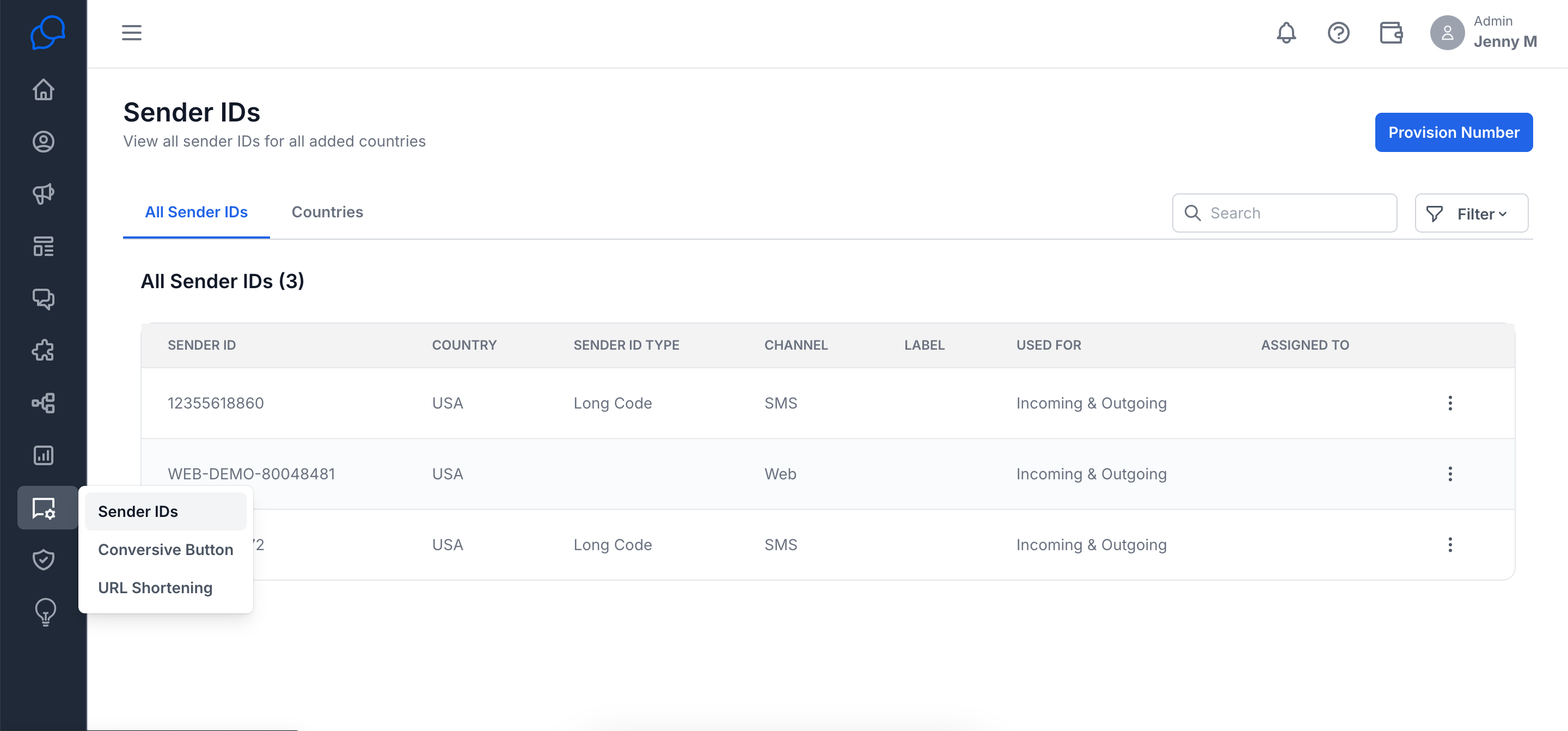
On the Sender IDs page, click on 3 dots in front of number.
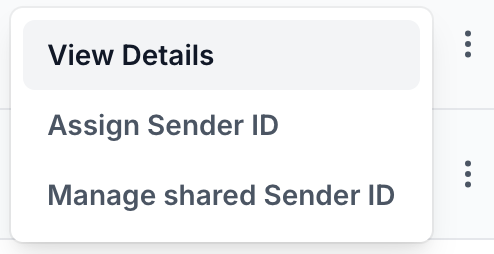
Click on 'View Details'.
The Incoming Sender ID Details pop up appears.
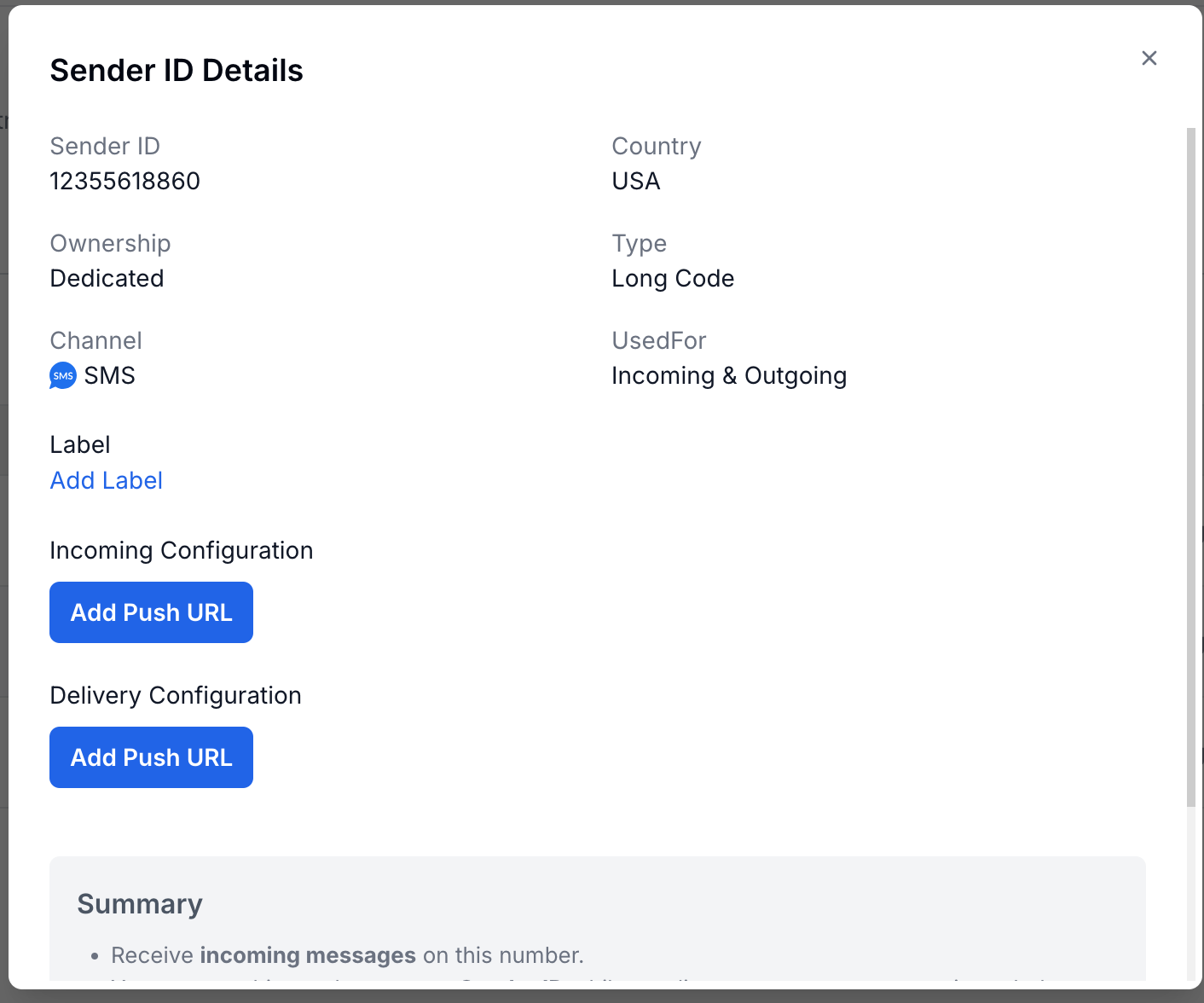
Under Incoming Configuration, click 'Add Push URL'. A blank text area appears.
Insert any URL to which you want to push your incoming text.
(e.g. http://api.webhookinbox.com/i/fcL3J7dy/in/)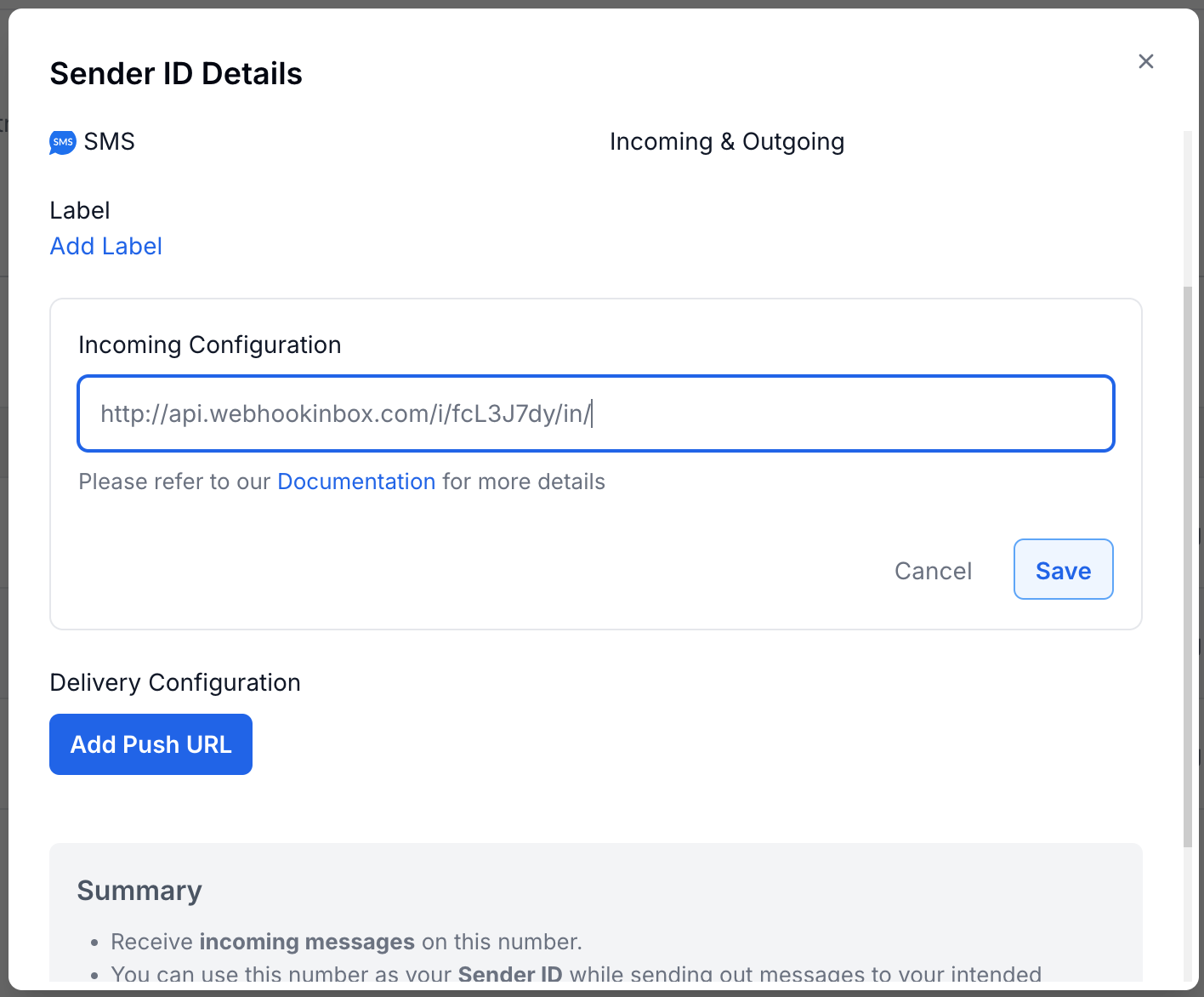
Click Save. All Incoming SMS received on the Conversive Portal, is pushed to the assigned URL.
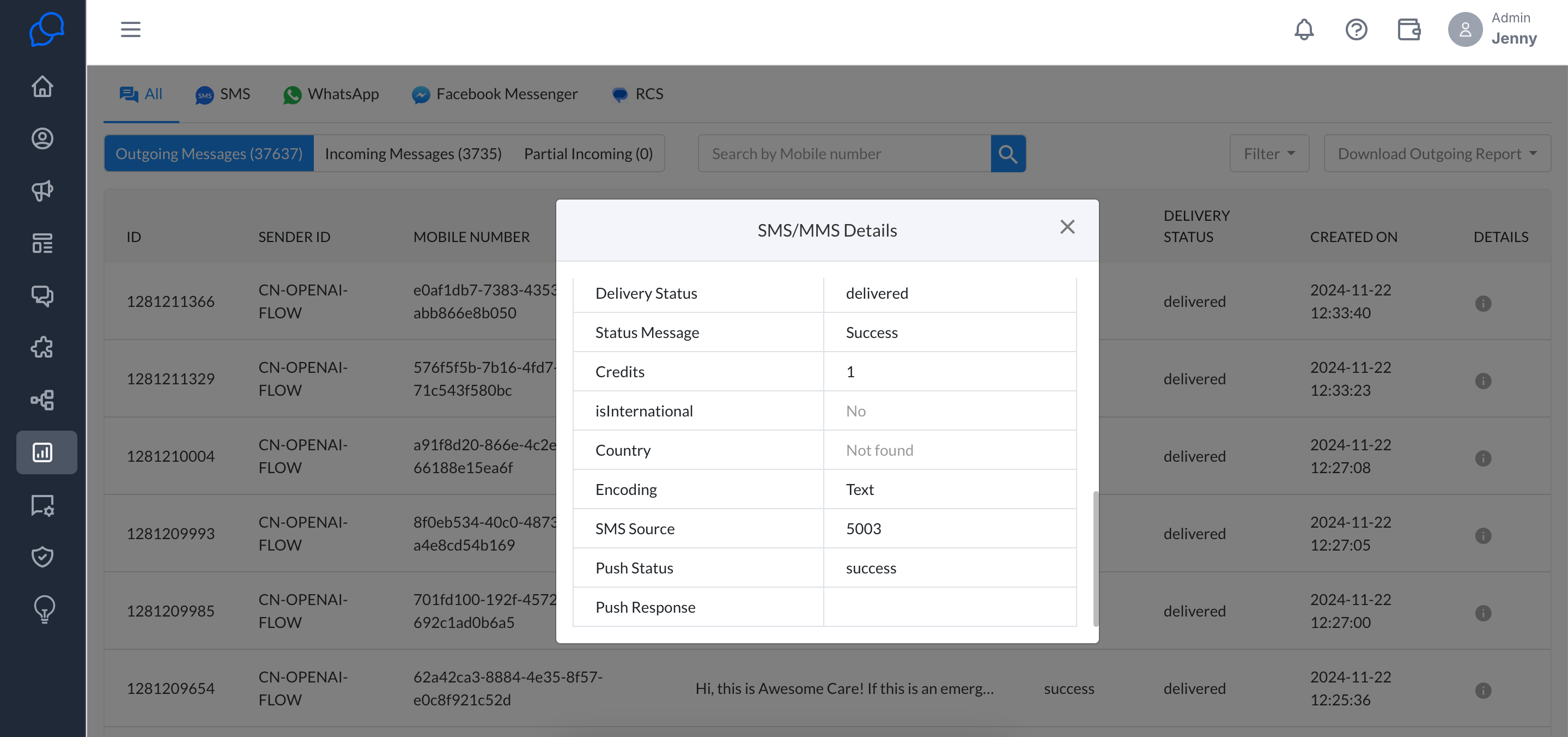
The Push to URL status is shown under Message History on Conversive Portal as shown in screen below.
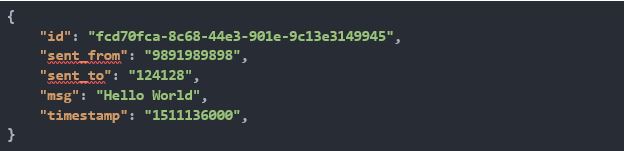
A sample Push Incoming SMS Request Payload is shown below:
Delivery Configuration of Incoming Number for individual account:
We can set Delivery report URL for Incoming Number per Account.
Incoming Number:
Assign Incoming number to your account from the admin portal.
Log in to the Conversive portal.
On the top menu bar, click SMS Services.
In the navigation pane on the right, under Incoming Numbers, click My Number.
On the My Number page that appears, select the country.
Click Details. The Incoming Number pop up appears.
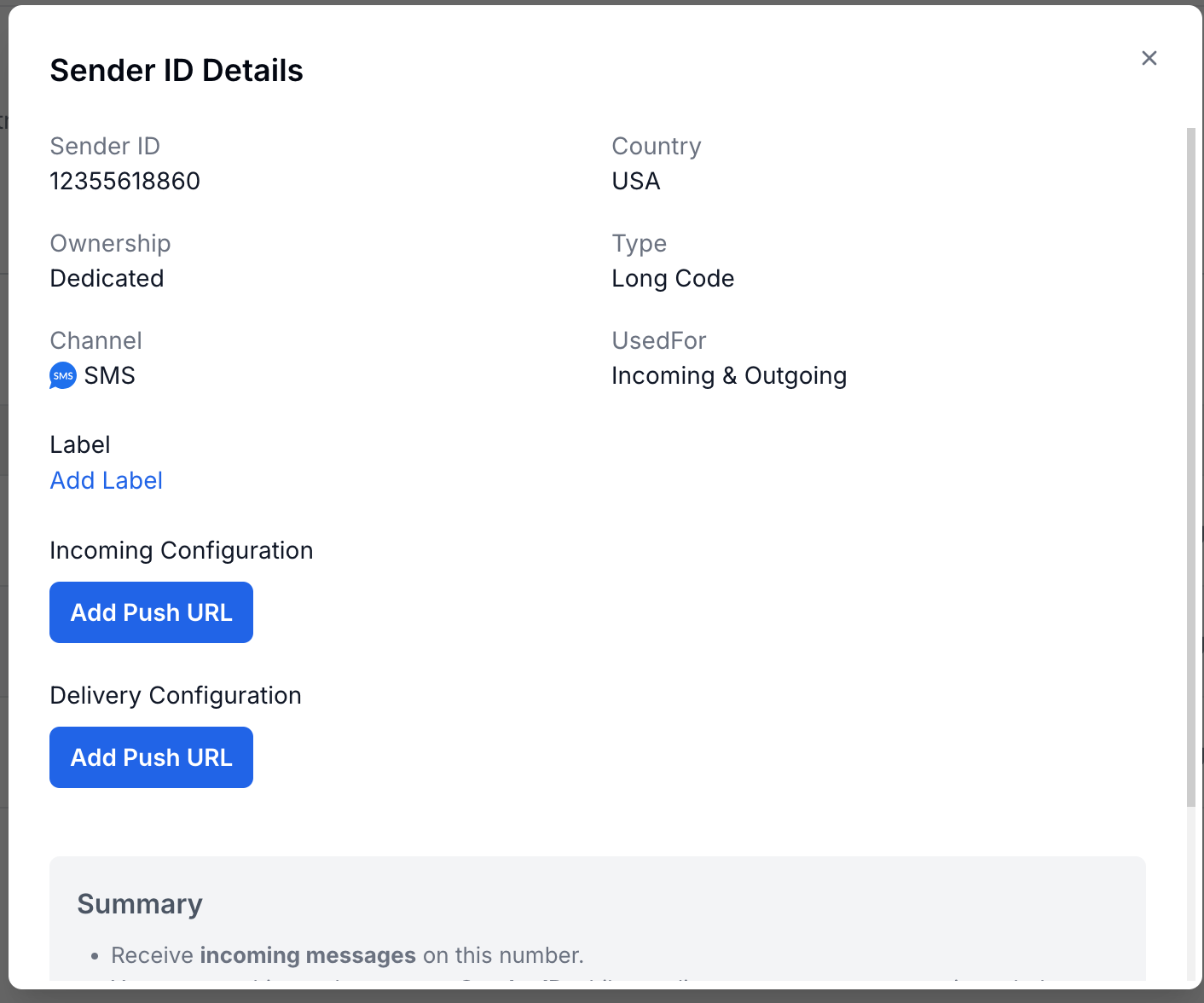
Under Delivery Configuration, click Add Push URL. The blank text area appears.
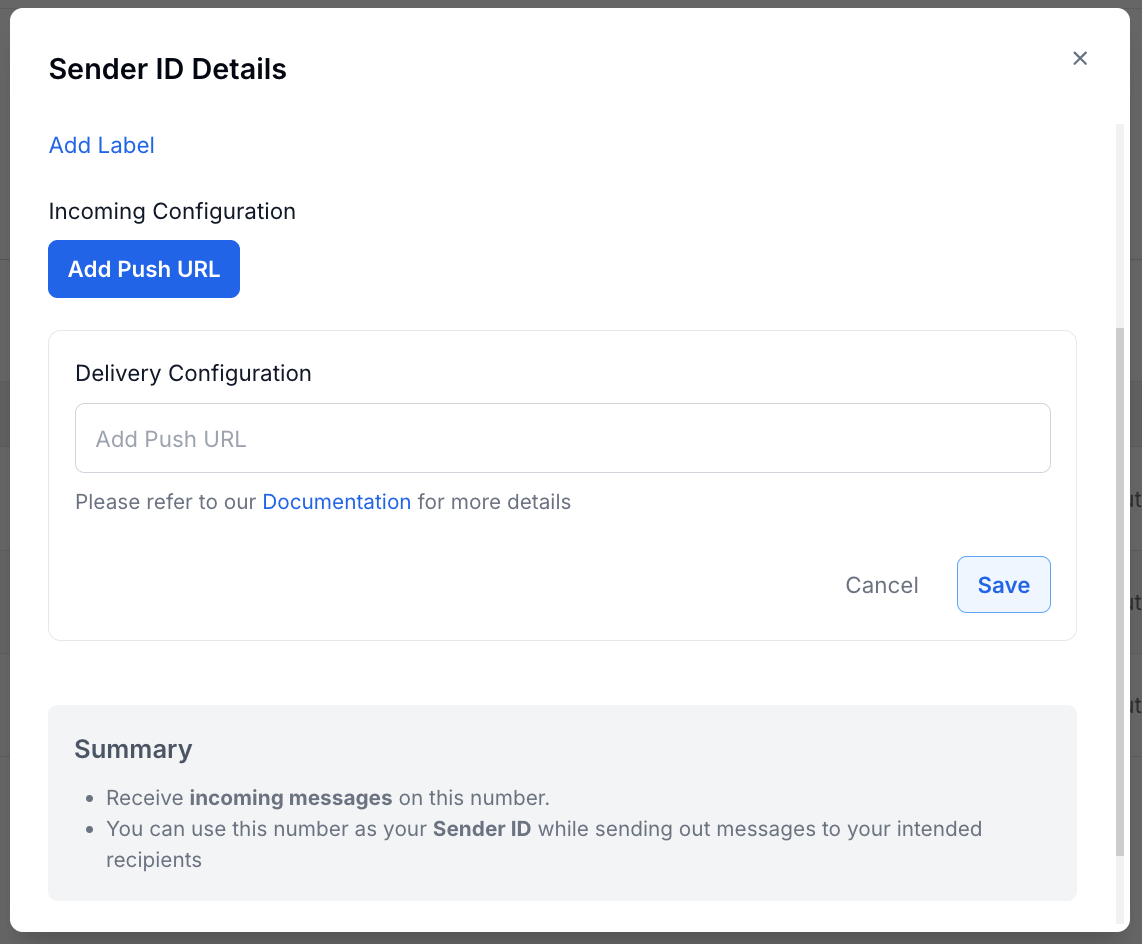
Insert any URL to which you want to get the Delivery report. (e.g. http://api.webhookinbox.com/i/fcL3J7dy/in/) All Delivery reports for outgoing messages on the Portal, are pushed to assigned URL.
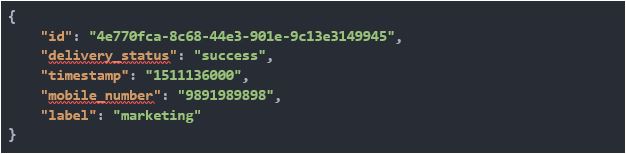
A sample Push Delivery Report SMS Request Payload :